 MoonGit
Connect MoonGit to an MCP client
Enable MoonGit MCP on your Windows device and let a compatible local client read repository context.
Enable MoonGit MCP
In MoonGit, open Settings → Advanced features and enable MoonGit MCP. The Windows Store installation exposes the helper as moongit-mcp.exe. Compatible processes under your operating-system account can request repository data while this access is enabled, including from repos that are closed in MoonGit. Review Privacy and data handling before enabling it.
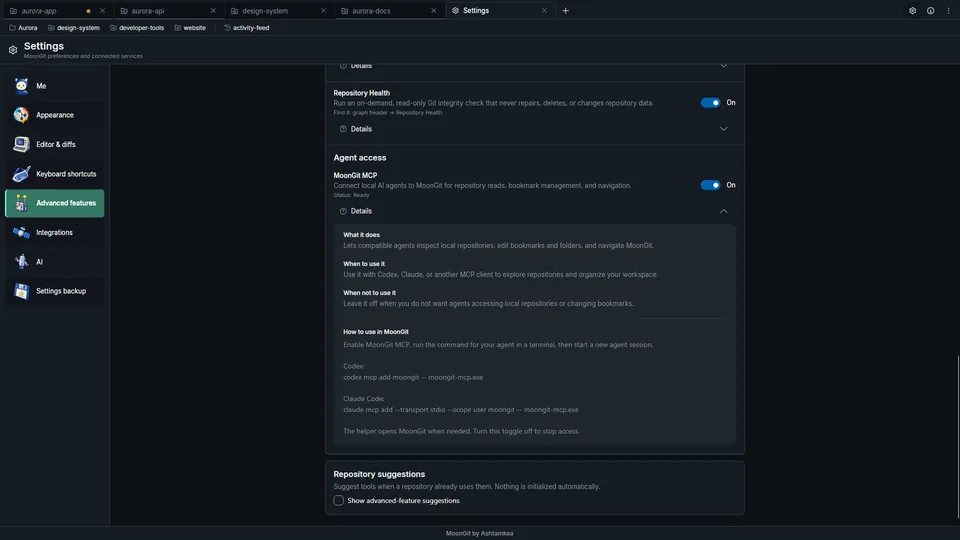
Connect a client
For Codex, run this in PowerShell, then start a new session:
codex mcp add moongit -- moongit-mcp.exe
For Claude Code, register it and open a new session. Use /mcp to check the connection.
claude mcp add --transport stdio --scope user moongit -- moongit-mcp.exe
Verify the connection
Ask the client to show the status of a disposable sample repo, for example C:\Dev\orbit. Verify the returned repository path and compare the branch and file status with MoonGit. If several windows are open, select the intended instance. MCP repository actions read data. Supported workspace actions can navigate and modify bookmarks.
If the client cannot find the helper, check Get-Command moongit-mcp.exe in PowerShell. Verify the app execution alias and Store installation if it is missing. If the client reports that access is disabled, check MoonGit MCP in Settings and reconnect.
Disconnect
Turn off MoonGit MCP in Settings to stop access through this integration. Remove the entry from a client's configuration if you no longer want that client to launch the helper.