MoonGit
Customize MoonGit and back up settings
Find app and repository settings, customize keyboard shortcuts, and move your preferences to another computer.
Find the right setting
| Where to go | What you can change |
|---|---|
| Me | Set the global Git author name and email used for new commits. |
| Repository settings | Set the current repository's origin or identity. |
| Appearance and Editor & diffs | Set the theme, palette, and editor presentation. |
| Advanced features | Enable optional tools such as worktrees and History & Recovery. |
| Integrations, AI, and Git CLI | Configure a connected service or tool. |
Customize keyboard shortcuts
Open Settings → Keyboard shortcuts and search for the action by name. Check the context in which the binding applies. Resolve any reported conflict, then test the shortcut in that context. Optional feature shortcuts appear when the feature is enabled.
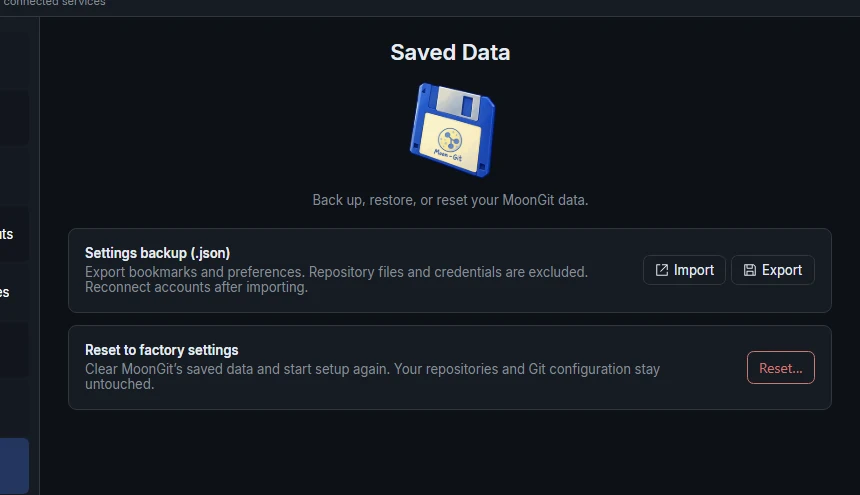
Back up settings in Saved Data
- Open Settings → Saved Data and select Export under Settings backup (.json). Save the file somewhere private.
- On the destination computer, select Import, choose the file, and review the resulting preferences and bookmark paths.
- Reconnect your hosting and AI accounts so the destination computer can save its own credentials.
The backup contains preferences, bookmarks, and account metadata. Back up your Git checkouts separately. Provider credentials are stored in the operating-system vault. If MoonGit offers a local profile backup during startup, use profile recovery.