 MoonGit
Recover a previous commit or saved work
Use the reflog and MoonGit’s recovery points to inspect older branch tips and recover safely.
Find a known point
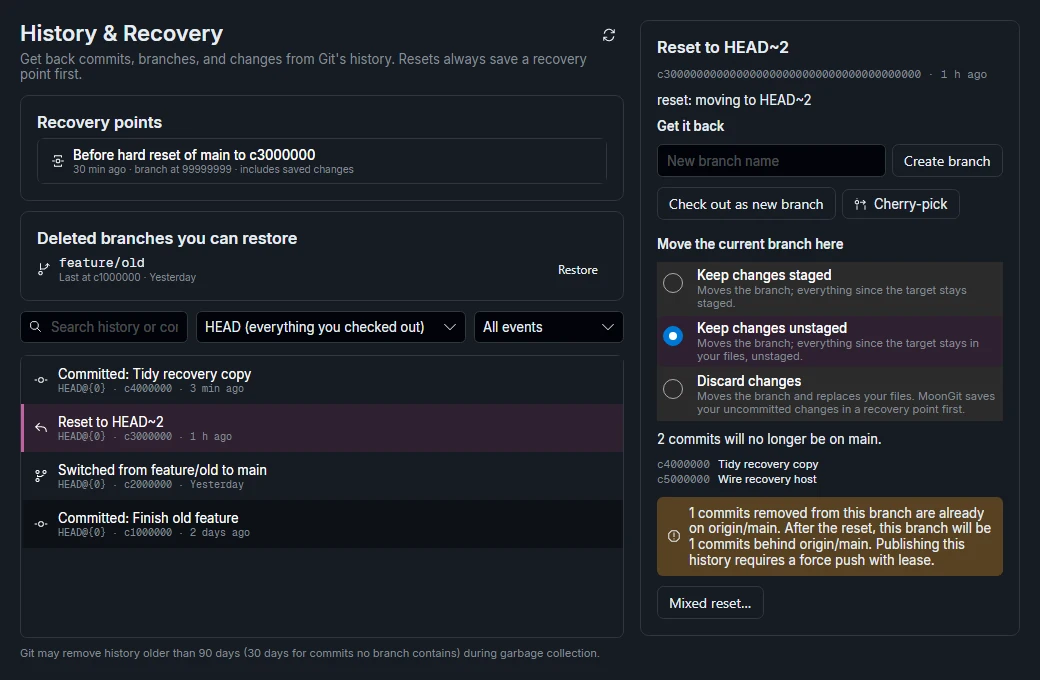
Open History & Recovery from the branch bar or More tools. Enable it in Settings → Advanced features if needed. Open Reflog and find the old tip by its time, message, and commit ID. Inspect the commit before using it to recover anything.
Choose the smallest action
| What you want back | Action | What to check |
|---|---|---|
| A commit that lost its branch | Create branch at the old tip | Confirm the new branch points to the expected commit. |
| Uncommitted edits saved by a MoonGit operation | Apply saved changes only, when the recovery point offers it | Confirm the destination checkout and review the restored edits in the working changes. |
| The previous branch and checkout state | Review the restore preview before confirming | Check the target tip, checkout, and current files. |
| MoonGit preferences or bookmarks after startup failure | Choose a verified backup on the profile recovery screen | Check the backup date and what settings will revert. |
For example, if a reset moved a local branch too far back, create a new branch from its old reflog tip first. Open the recovered commit and verify its files. Reflogs can expire. Keep recovered work on a branch or in another backup once you've confirmed it.
Recover the MoonGit profile
If MoonGit opens a profile recovery screen, choose a verified backup and check its date. Restoring can roll back preferences, bookmarks, and workspace state saved after that date. Git repository files are stored separately.