 MoonGit
Organize tabs and bookmarks
Keep related repositories in folders and move between open projects without losing your place.
Keep a repository handy
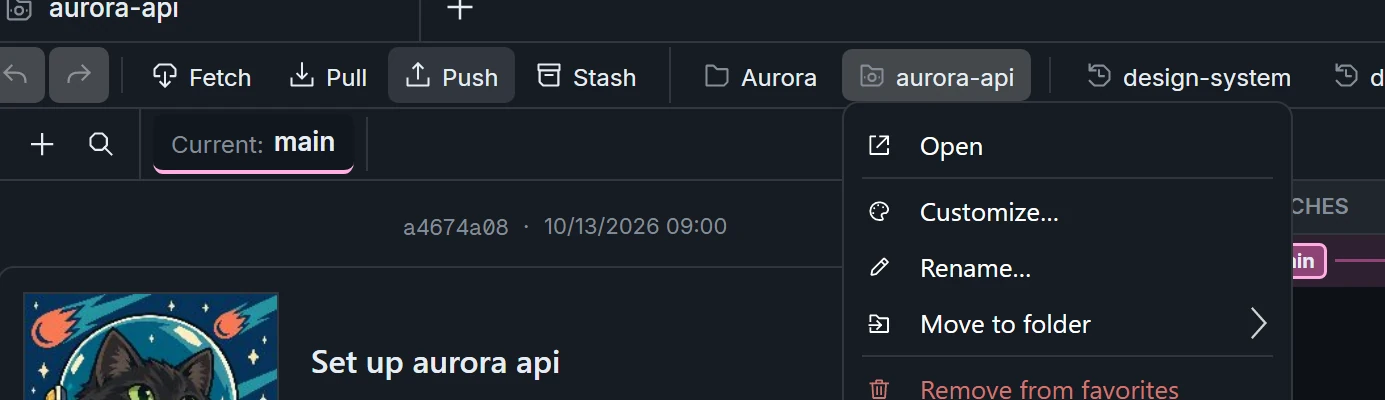
With the repository open, use its tab or bookmark actions to add it to the bookmark bar. Right-click the bookmark to access its name, appearance, and removal actions. Drag it to reorder it or move it into a folder.
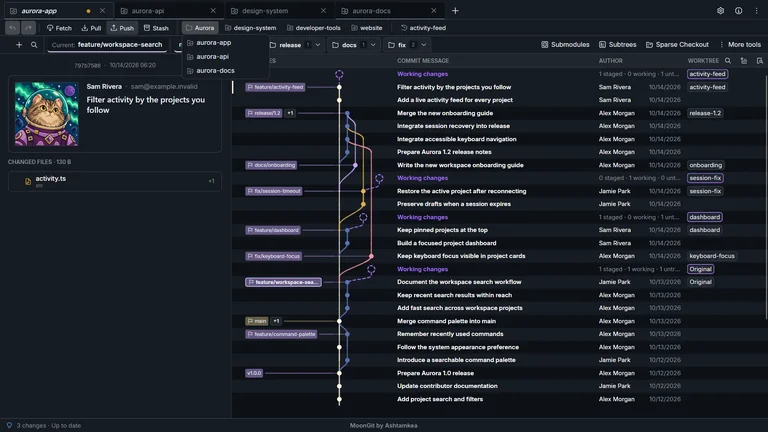
Group related projects
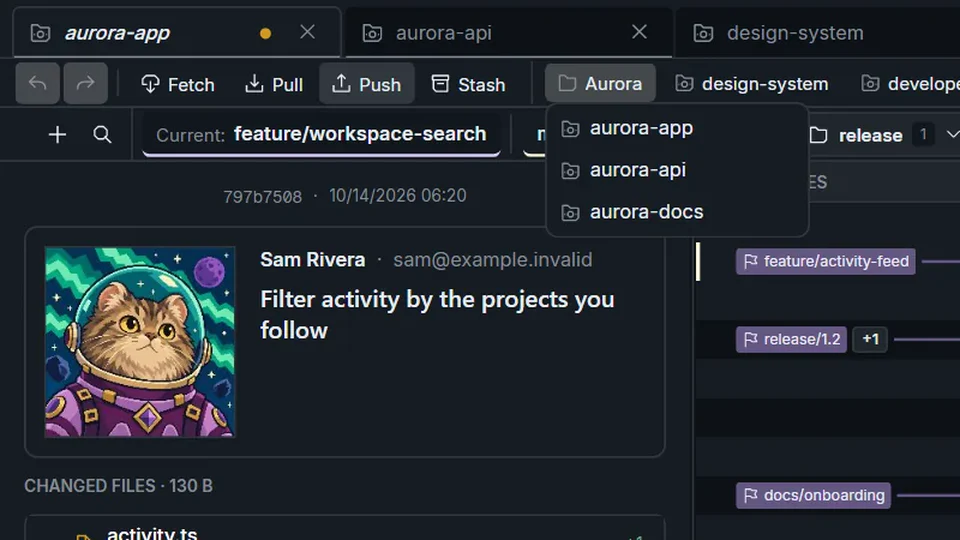
Right-click the bookmark bar and use New folder…. Choose a name, then drag related repositories into it. Click the folder to open its shortcuts and pick a repository. Use the folder's context menu for folder management.
Customize a bookmark
Right-click a repository bookmark and choose Customize to select its icon and color. Use Rename for a recognizable label. For a folder, open its own context menu to change its appearance. These choices organize MoonGit's shortcuts; they do not rename or recolor files in the Git repository.
MoonGit's space theme also includes playful details such as the piano feature. Watch the trailer to see the design and sound, or browse the feature overview.
Fix a bookmark that no longer opens
Reconnect the drive first if it is offline. If the checkout moved, use Locate repository… from the bookmark's menu and choose the new folder. Opening the bookmark should bring up the same project in a new tab. Closing the tab or removing the bookmark leaves the checkout on disk.