 MoonGit
Open or clone a repository
Open an existing Git checkout, find a project to clone, and keep frequently used repositories in bookmarks.
Open an existing checkout
- Open the repository finder from the Welcome tab or the workspace.
- Select Open folder and pick the folder where Git checked out the project.
- Check the new repository tab. It should show the project's branch, commit history, and any local changes.
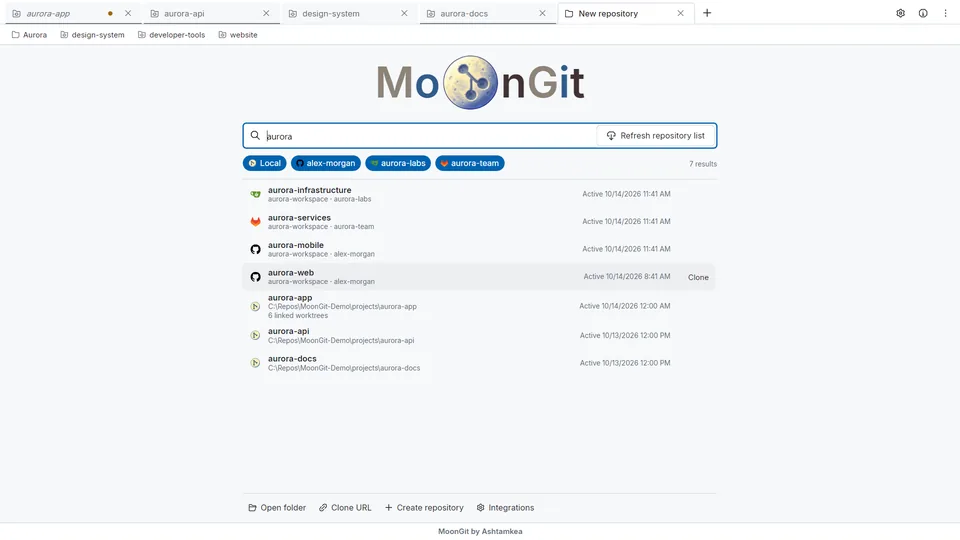

Clone a repository from its URL
Select Clone URL, paste your repository's HTTPS or SSH URL, and check the destination folder before selecting Clone. With a private repo, the remote must accept your Git credentials. If the clone succeeds, check the branch and folder in the tab that opens.

Find a repository in a connected account
Connect your account, then use the connected source in the repository finder. Search for the repository, select the result, then review its host and clone destination. The finder also has Create repository for starting a new local project.
Watch Find and Clone Repositories · Organize the new tab and bookmarks · Make a first commit