 MoonGit
Current vs Incoming in Git merge and rebase conflicts
See which branch Current and Incoming refer to during a merge or rebase, and verify both Git conflict stages before choosing the final lines.
During a normal merge, Current is the checked-out branch and Incoming is the branch you’re merging. During a rebase, Git builds the result on the new base, then replays your feature commits. At a conflict, Git’s ours is the rebased result so far and theirs is the commit being replayed. Read the editor’s side labels and verify the lines before accepting either side.
| Operation | Git stage 2, ours | Git stage 3, theirs |
|---|---|---|
On feature/settings, run git merge main |
Your checked-out feature | The incoming main |
On feature/settings, run git rebase main |
The result built so far on main |
The feature commit being replayed |
Editor labels vary. The Git stages give you a check you can use from any editor.
Work through a conflicting setting
Suppose both branches edit settings.txt. The feature keeps the old timeout and raises retries from 2 to 3. The base raises the timeout from 30 to 45 and keeps two retries. If Git reports a conflict over these adjacent lines, your intended result may include both changes.
timeout_seconds=45
retries=3
Before choosing a side, establish why each edit exists. If the timeout and retry changes can coexist, edit the result to include both. If a test or product rule excludes that combination, use the intended behavior and test it as part of resolving the conflict.
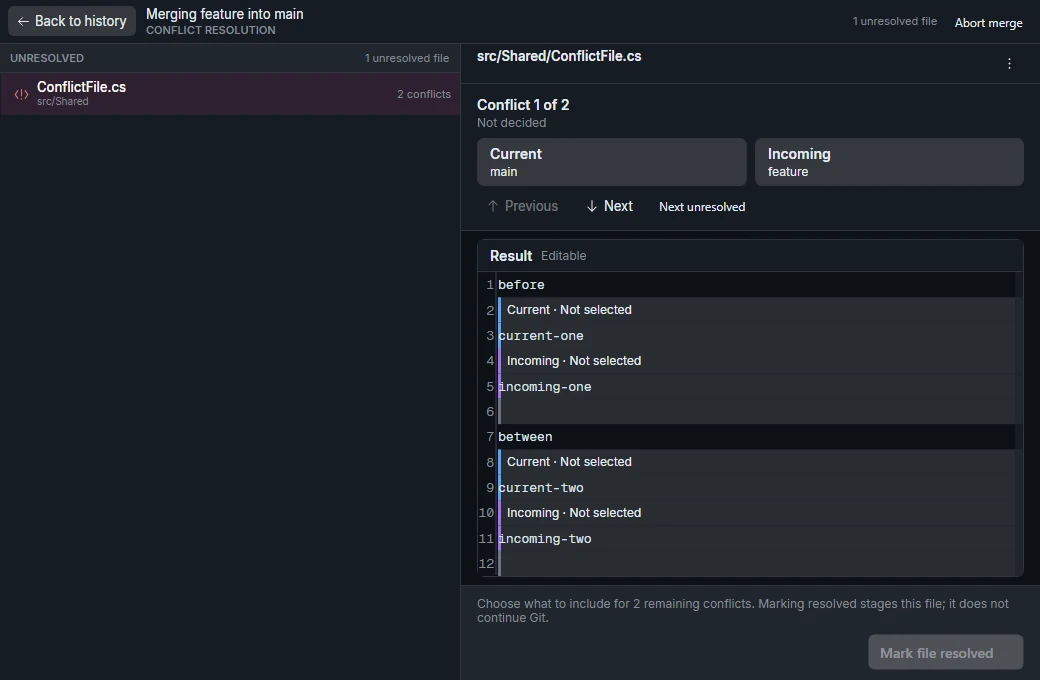
Confirm the sides from Git
Run these read-only commands from the checkout with the conflict. Git only keeps the unmerged stages while the path is unresolved.
git status
git ls-files -u -- settings.txt
git show ':2:settings.txt'
git show ':3:settings.txt'
git ls-files -u lists each available stage for the path. Stage 1 is the merge base. In a delete/modify or add/add conflict, some stages may be missing. Read whatever versions are present, then check the proposed resolution against the branch’s goal. Git describes the rebase case in its ours and theirs documentation.
Mark the file resolved and finish the operation
In MoonGit, edit the result, inspect its diff, and choose Mark file resolved once the file is correct. Repeat for each unresolved path. Use Continue merge for the merge shown below. During a rebase, use the operation’s own continuation and expect Git to stop again if a later replayed commit conflicts. Run the tests for the affected behavior before you push.
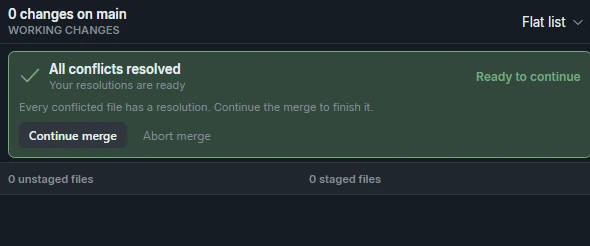
Use the MoonGit conflict guide for the full controls, or follow Microsoft’s VS Code merge-conflict guide if you prefer resolving inside your editor.