MoonGit
Compare revisions, file history, and blame
Review what changed between two points and trace a line back to the commit that edited it.
Compare two revisions
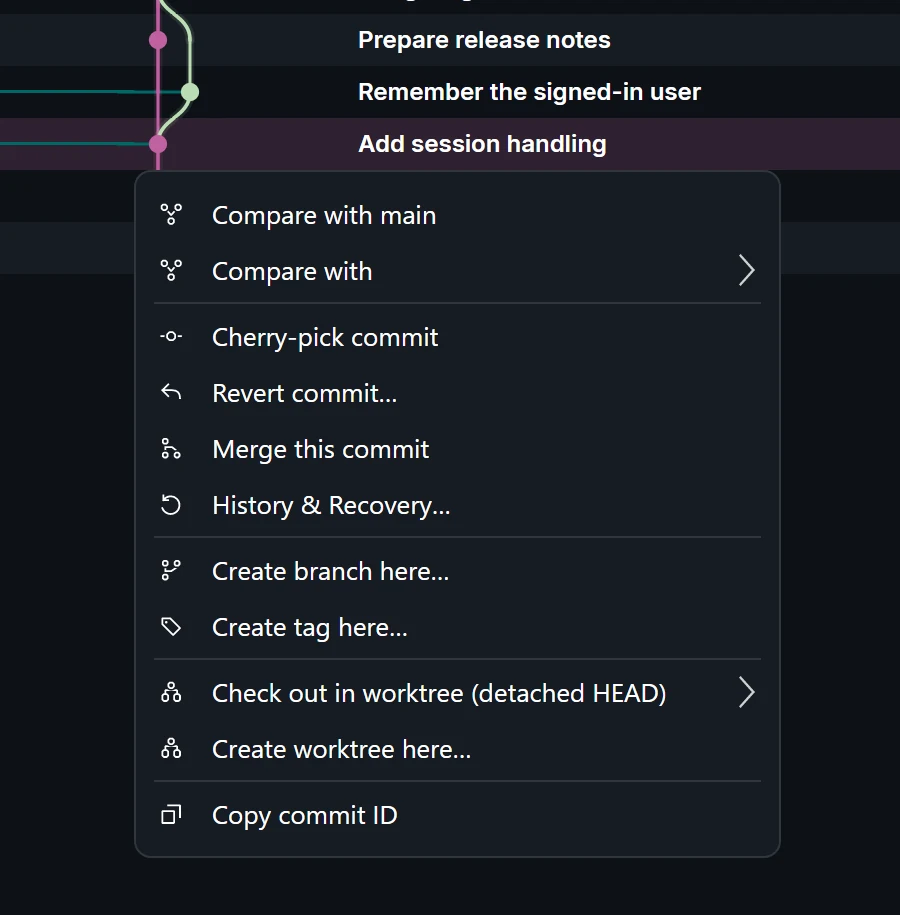
- Open a commit's context menu and use Compare with to choose a branch, parent, or other commit. For a branch comparison, use Compare current with on the other branch.
- Check which revision is shown first. Additions and deletions are relative to the displayed order. Use exact commits when you need a comparison that can be repeated after the branch moves.
- Select a changed file and read its diff. If you are checking a cherry-picked fix, compare the final contents around the changed lines.
Open file history
Open File history for the selected file to see the commits that changed it. Pick an entry and inspect the corresponding diff to find why a change happened.
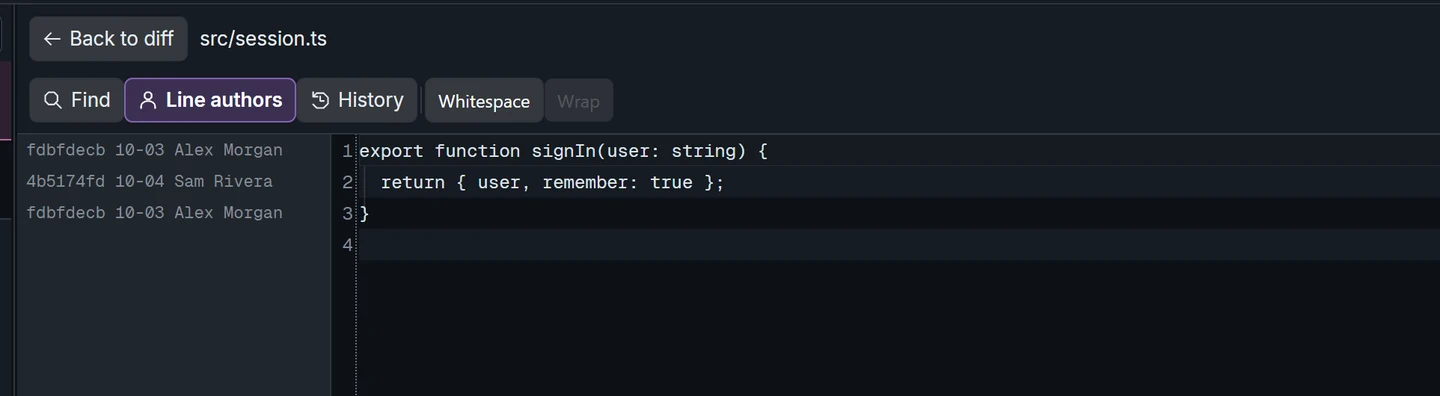
Trace a line with blame
Open Blame for the file revision you are viewing, then find the line and open its associated commit. A later formatting change may own the line, so open the earlier file history if you need its original context.