MoonGit
Install MoonGit on Windows
Set up Git for Windows, install MoonGit, and check that it can see your Git installation.
Check your PC
The Microsoft Store build supports Windows 10 version 2004 or later and Windows 11 on x64 and ARM64. Windows in S mode is unsupported.
Install Git for Windows
Install Git for Windows, then open a new PowerShell window:
git --version
Git should report a version number. Restart MoonGit if it was already open. If PowerShell reports that it cannot find Git, follow Git not found. Install Git LFS if your project uses it.
Install and launch MoonGit
- Open the MoonGit listing in Microsoft Store and install it.
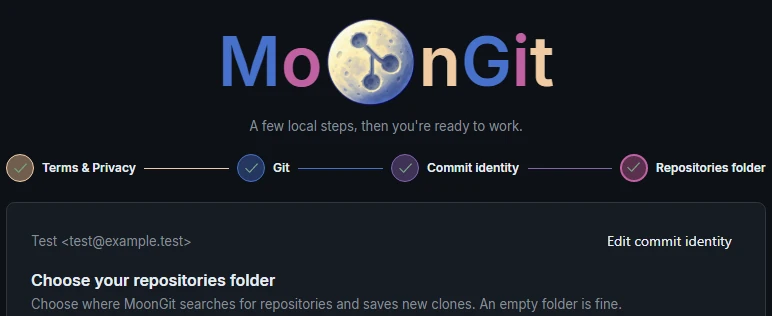
- Start MoonGit from the Windows Start menu. Complete the Welcome steps. When Git is available, you can open or clone a repository.
- Open or clone a repository. The repository should appear in its own tab.
If you claimed a copy through Microsoft, use the Store Library installation guide and the account you used to claim it.
See Pricing for the Store trial, purchase price, and founders offer.