 MoonGit
Import and synchronize a Git subtree
Keep upstream code in a directory of your repository and review updates before applying them.
Import a subtree
Enable Git subtrees in Settings → Advanced features if needed. Open Subtrees on the branch bar or under More tools, then choose Add subtree. For example, choose vendor/library as the destination and main as the upstream branch. Use Fetch and preview import to review the operation.
A squashed import records the upstream contents in a compact import commit. Keeping the full upstream history is useful when your team needs those upstream commits in the parent repository. Choose the mode that matches the project's conventions. Check the destination, source, branch, and history mode in the preview before applying.
Update an existing subtree
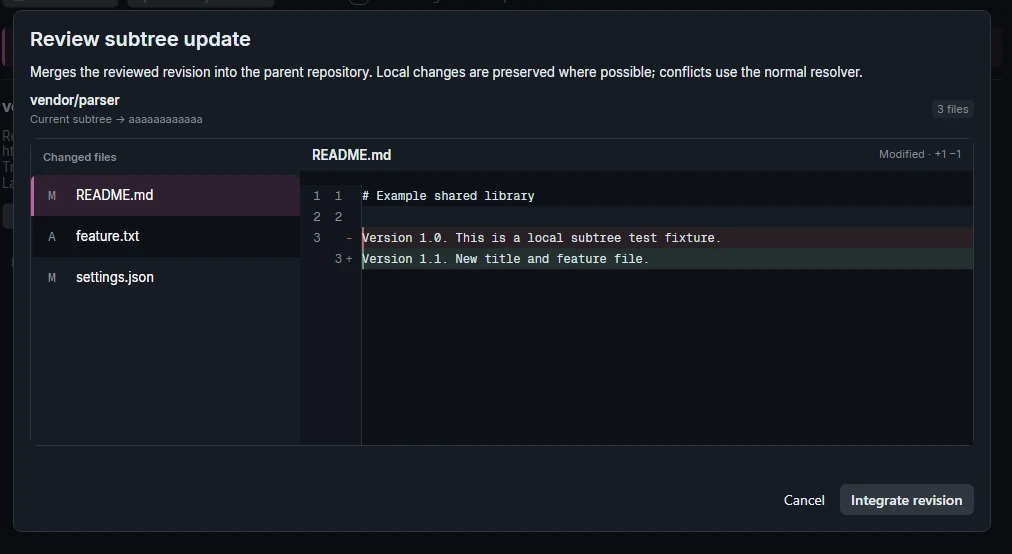
Select the subtree and confirm the upstream. Use Browse revisions to inspect source history or Fetch and preview update to see what will change. Preserve overlapping local edits before applying. Open the resulting change and confirm that it affects the intended directory.
Share or extract your changes
Use Split directory to branch to extract committed directory history. If your team pushes changes upstream, verify the destination in the push preview. Forget setup, keep files… removes MoonGit's local setup for that subtree and retains the tracked directory.