 MoonGit
Create, switch, and merge branches
Start a branch from a known commit, switch checkouts, and merge into the intended destination.
Start a branch from the right commit
For this example, start from the tip of main and create feature/search. Use the branch creation action in the branch bar or the starting commit's context menu. Confirm the starting point and switch to the new branch. Check the branch in the workspace before committing.
Click a branch in the picker to jump to its tip in the graph. Double-click it to request checkout. Check the Current branch label after checkout.
Merge into the checked-out branch
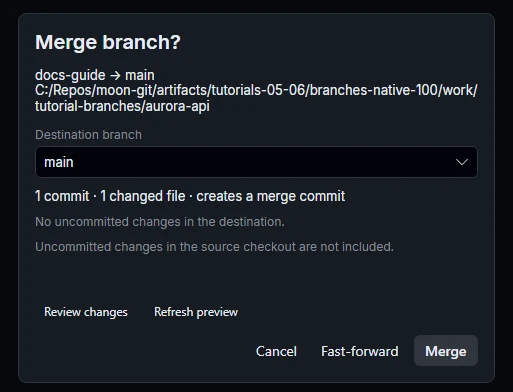
- Switch back to
main. This is the destination. - Open the menu for
feature/searchand choose its merge action. This is the source. - Check the source and destination in the operation preview and confirm. If it stops, resolve the conflicts and complete the merge.
- Inspect the graph with
mainselected. In a fast-forward,mainmoves to the existing feature tip. For a merge commit, check that both histories connect to the new commit.
When checkout needs attention
Read any preservation prompt before proceeding. If checkout reports that it finished only part of the operation, check the active branch and where MoonGit saved your work. History & Recovery explains the available recovery paths.