 MoonGit
Find a failed CI check
See which run, job, or step failed for a commit and open the full logs in your provider.
Show CI results in the graph
Connect a hosting account and enable CI / Post-processes under Settings → Advanced features. Select a commit or its CI icon. If the inspector shows several sources, select the repository and account that ran the build.
| Provider | What to check |
|---|---|
| GitHub Actions | The connection has access to the repository and its Actions runs. A fine-grained token needs Actions: read. |
| GitLab CI | The account can read pipelines. For token connections, check API read access such as read_api. |
| Bitbucket Cloud Pipelines | The connection can read Pipelines. Check the provider's pipeline read scope for your token type. |
| Azure Pipelines | Use Azure DevOps Services and a token with Build: Read. |
| Gitea Actions | The server and repository support the Actions run and job API. Check that the token can read Actions. |
See hosting and CI compatibility for supported editions and services such as Forgejo that support repository discovery only.
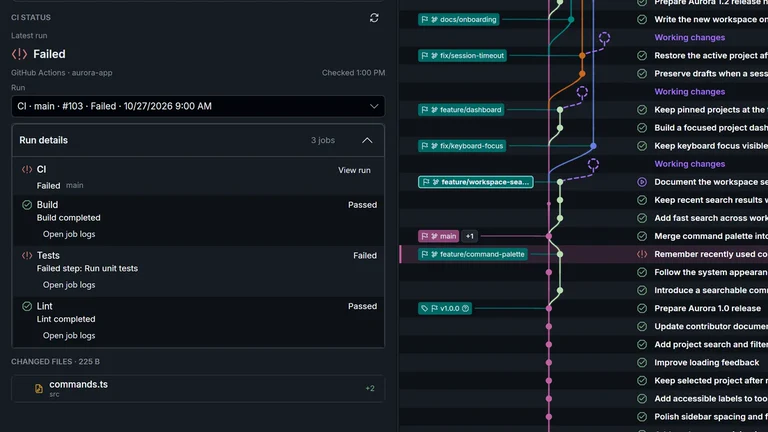
Find the failed job
- Expand the run tied to the selected commit.
- Select the failed job, then inspect the failed step when the provider exposes one.
- Open the full logs through the provider link. Retry a job in the provider interface if you have permission.
Check freshness and access
- No runs means the provider returned no runs for the selected commit.
- Unavailable means MoonGit couldn't establish the status. Check the selected repository, account permissions, and provider availability.
- Last known status is a saved result. Check its timestamp and select Refresh for the latest result.
Runs are tied to the exact commit. A synthetic merge commit can have checks separate from its parents.