 MoonGit
Git CLI in MoonGit
Enable Git CLI, choose a worktree, and search command output without leaving the workspace.
Turn on the built-in Git CLI
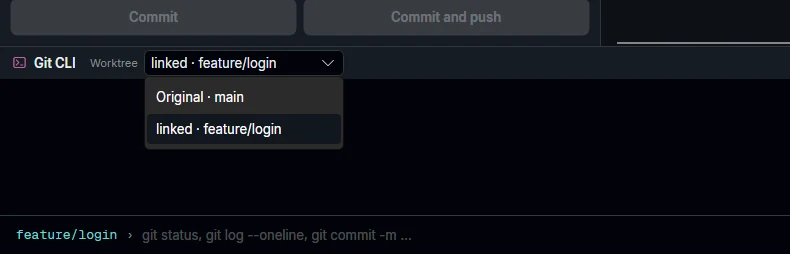
Open Settings → Git CLI and enable Built-in Git CLI. Open a repository and find the Git CLI row. Check the Worktree menu before submitting a command.
For example, the graph can show the main checkout while the Git CLI targets a linked hotfix checkout. Run git status --short --branch and read the first line. It identifies the active branch and may show its upstream. If the branch differs from your intended destination, change Worktree and check again.
Complete commands and read the output
Press Tab for completion and Enter to run the command you typed. Search retained output to find an earlier result. Select a recognized commit hash to inspect it in the graph. Ctrl+C stops a running command when you have no text selected.
MoonGit can ask for an additional confirmation before a command discards work. Read the command and destination before confirming.
Switch to an external terminal when needed
Use External terminal for shell programs, pipes, redirects, or commands that need an interactive editor. Choose the launcher in Settings → Git CLI. Review the checkout and branch before a write command.