 MoonGit
How to check which Git branch contains a commit
Verify whether a fix reached your release branch, including when a squash, rebase, or cherry-pick changed the commit hash.
A fix can be merged into main and still be missing from the branch you are about to ship. Start by identifying the fix and the exact release ref your build uses. Then check both the commit and, if the history changed, the resulting code.
| What you know | What to check |
|---|---|
| The exact commit ID | See whether the release ref contains that commit. |
| The fix was cherry-picked or rebased | Look for an equivalent patch, then inspect the release file. |
| The fix was part of a squash merge | Read the squash commit and verify the behavior in the release tree. |
| The release was built from a tag | Inspect the tag used by that build, even if the branch moved afterward. |
Start with the commit
In MoonGit, open the repository’s history search. Search for the commit message, a path changed by the fix, or the author if you have several similar results. Open the candidate and read the diff. If two commits both say “Fix empty search,” the one that adds the empty-state check is the one you want to trace.
Write down the full commit ID and the release target. For a release created from origin/release/1.2, check that remote-tracking branch. If the deployment metadata identifies v1.2.4, check that tag. Fetch when your local references may be stale.
Check which branches contain it
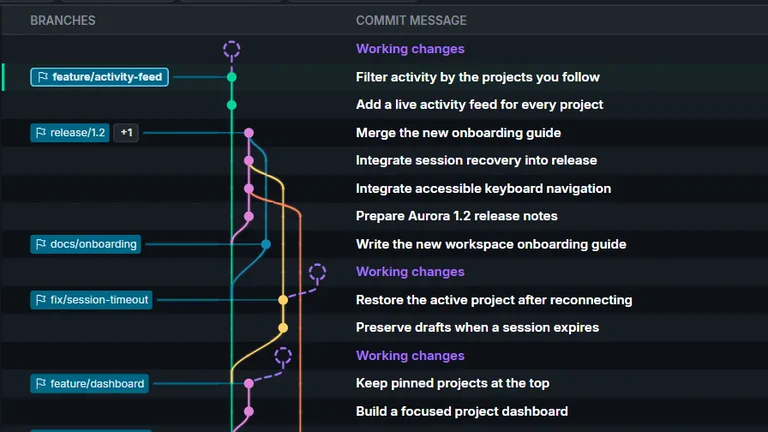
Select the fix in MoonGit and inspect its branch containment. If origin/release/1.2 appears, the original commit is reachable from that branch tip in your local view of the refs.
For a command-line check in PowerShell, replace the example value with the actual commit ID.
$fix = 'abcd1234'
git branch -a --contains $fix
The output lists containing local and remote-tracking branches. For a single target, git merge-base --is-ancestor $fix origin/release/1.2 returns exit code 0 when the commit is reachable and 1 when it is not. Other failures warrant checking your refs and history. Git branch reference · Git merge-base reference
Here is a common release decision. You see main in the list and no release branch. If your team merged directly, check for a missing backport. If your team uses squash merges or cherry-picks, continue to the patch check before picking anything again.
Compare when the hash changed
Imagine the original commit introduced a check for zero search results. The release branch received the same change as a cherry-pick, so the original ID never appears in its history. MoonGit’s containment list answers the exact-ID question correctly. The release file can still contain the fix.
In MoonGit, compare the release ref against the relevant revision or open the file’s history on the release branch. Read the line that implements the fix, including the surrounding conditions. When the release has unrelated changes in the same file, inspect the specific behavior instead of expecting a zero diff.
Git can also mark patch-equivalent commits. For a known source branch, git cherry -v origin/release/1.2 main compares patches on main against the release branch. A match is a useful clue when commits were copied one at a time. A many-commit squash can combine fixes in ways that a one-to-one patch check misses. Git cherry reference
Check the artifact before you call it shipped
A containing branch proves something about Git history. A release also needs a build from the expected ref, with the relevant test passing. Record the ref or tag, the resulting commit ID, and the build run in the release checklist. If the fix was reworked or reverted later, verify the final file and the regression test before publishing.
Search commit history · Compare revisions · Watch Explore and Compare History