 MoonGit
 vs Fork on Windows: Worktrees, rebase, and recovery
Compare two Windows Git clients using three tasks that matter on release day. Check worktree paths, rebase plans, and the commit you intend to recover.
Fork and MoonGit both serve developers who want a dedicated Git client on Windows. Both offer worktrees, interactive rebase, and ways to recover commits. A useful comparison is to bring the same kind of repository to both and see how each app shows the consequences of what you are about to do.
This comparison uses Fork’s published Windows features and MoonGit screenshots. Use a disposable repository with a few recent commits if you want to practice cleanup or recovery.
1. Open a second checkout and verify its path
Start with a feature branch that is already checked out. Create a worktree on a different branch and open its folder next to the first. Fork’s Windows notes document worktree creation, the worktree list, and opening a remote branch as a worktree. In MoonGit, open the worktree list and check the branch and path for each checkout. Try reopening the original folder from the list.
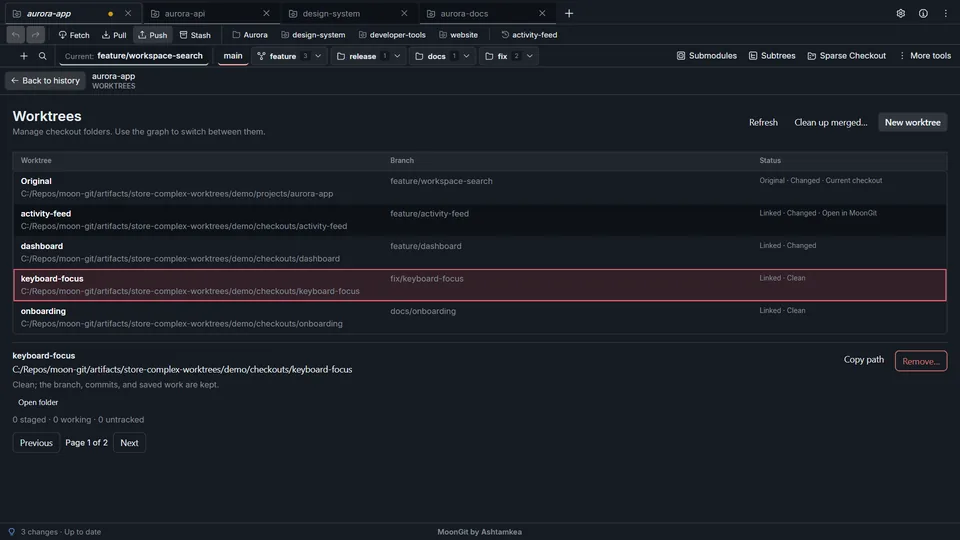
With two similar project folders, the practical question is whether you can verify the target before staging, testing, or removing a checkout. Follow the worktree walkthrough if you want a reusable exercise.
2. Inspect the rebase before committing to it
Make a small feature commit, a follow-up fix, and a documentation commit. Plan to fold the fix into the feature and keep the documentation separate. Both clients expose interactive rebase. Fork’s Windows release notes also document its --update-refs option, which is worth checking if you routinely rebase stacks of local branches. In MoonGit, open the plan and check the base, ordered actions, and projected commit count before applying.
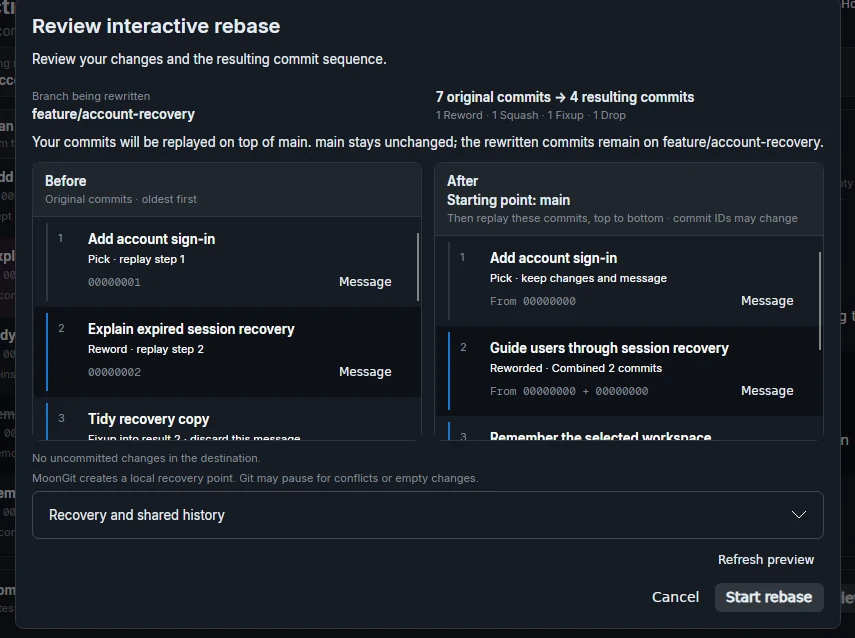
After the operation, verify both the graph and final file contents. See squash vs fixup for one example and the checks you can run in either app.
3. Recover a previous branch tip
Use the rebase exercise to locate the original tip. Fork documents a reflog and lost-commit view. In MoonGit, review the history and recovery entry, check the commit subject and ID, and inspect the resulting branch name before confirming. Recover to a new branch. Keeping it separate lets you compare the old and new histories while your current branch still contains the result you just built.
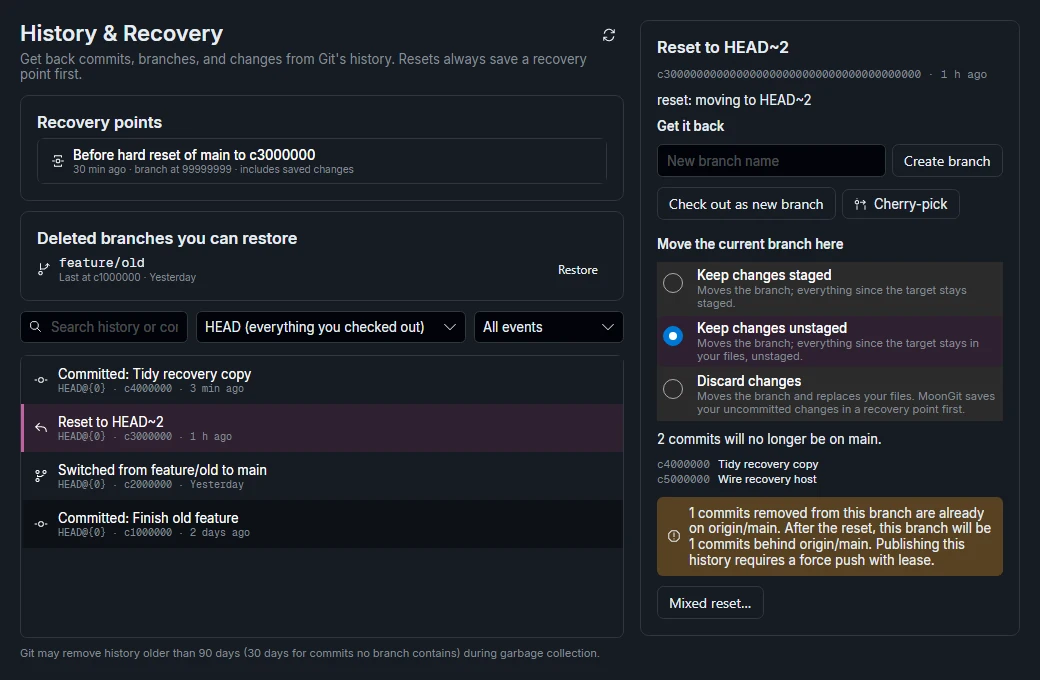
Try the reflog recovery walkthrough if you need the underlying Git steps. Choose based on the tasks you repeat and the evidence each tool shows when you check its proposed target. See Fork’s features and Fork’s Windows release notes for the documented controls in your version.