 MoonGit
Git worktree vs stash on Windows: Handle a hotfix without interrupting your work
Keep unfinished edits in place while fixing production in a second checkout, and learn when a stash is the simpler choice.
You are halfway through a feature when production needs a fix. Your working folder has an unstaged change, an untracked file, and a test window open. A worktree gives the hotfix a second folder. A stash saves a snapshot of selected local changes so you can reuse the current folder. The best choice depends on whether you need both environments at once.
| Situation | A practical choice |
|---|---|
| Keep the feature, dev server, or IDE window in place | Create a linked worktree for the hotfix. |
| Pause briefly and use the same folder | Stash, then switch branches. |
| Review a teammate’s branch while keeping your own checked out | Use another worktree with the review branch. |
| Keep draft changes away from every checked-out folder | Save a named stash and check what it includes. |
Leave the feature checkout as it is
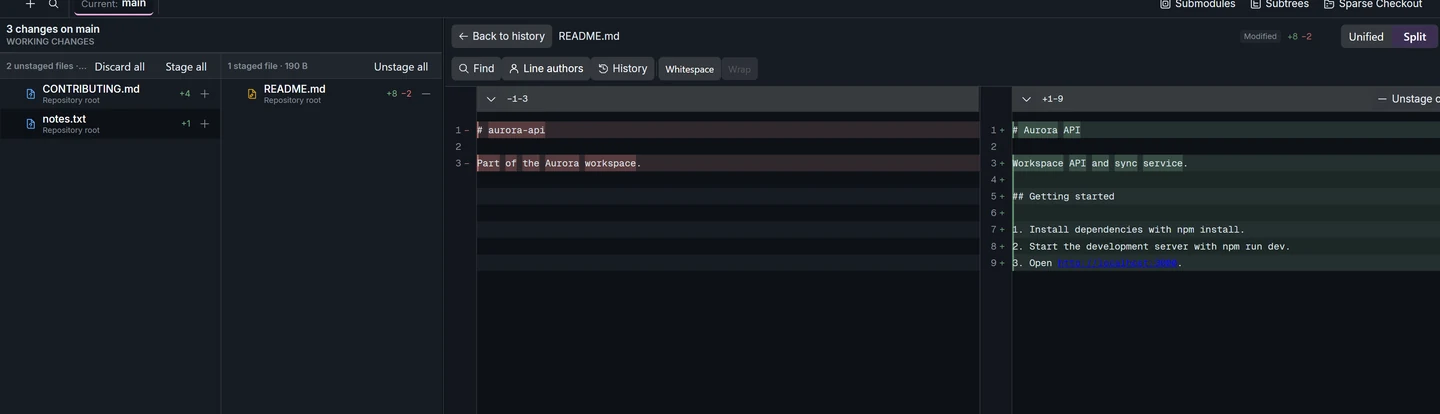
Before the interruption, look at the active branch and the staged and unstaged files. This establishes what you expect to find when you return. If you rely on untracked files for the feature, include them in that check. A worktree leaves them in the original folder. A stash includes untracked files only when you choose that option. Git worktree reference · Git stash reference
Make the production fix in its own folder
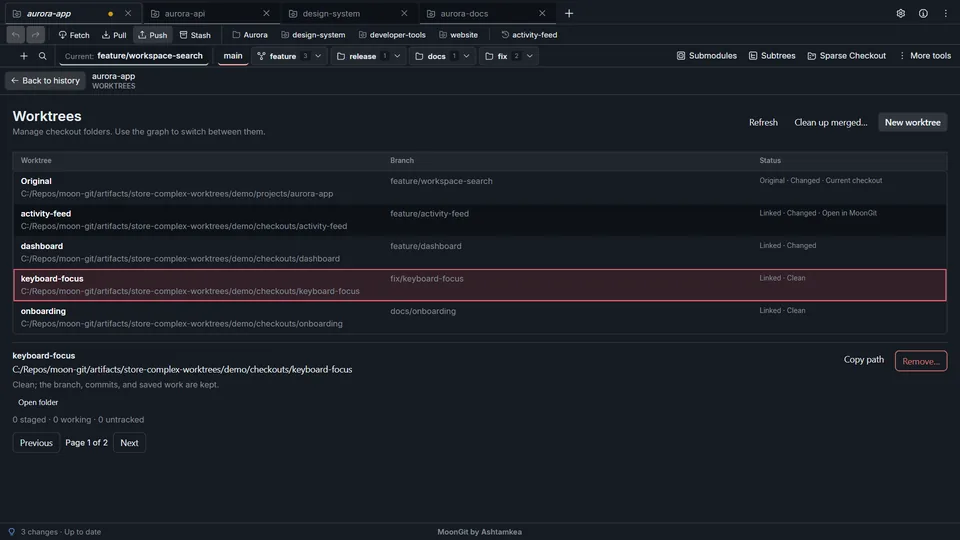
First identify the branch or tag your team uses as the hotfix base. Fetch if you need the latest upstream ref. In MoonGit, open Worktrees, choose that base, select Create a new branch, and enter a name such as hotfix/login-timeout. Select a sibling folder, open the checkout, and confirm both the folder and the current branch before editing.
For a disposable exercise with a checked-out feature and a local main branch, run the equivalent operation from your repository.
git worktree add -b hotfix/login-timeout ../project-hotfix main
git worktree list
git -C ../project-hotfix status --short --branch
git status --short --branch
The hotfix status should identify hotfix/login-timeout. The final status command still runs in the original checkout and should show the original feature edits. Commit and test the hotfix in the new folder. Open that folder separately in your editor if you want the IDE and Git view to point to the same checkout.
When a stash is quicker
A named stash is useful when you need only one checkout and expect to finish the interruption soon. Check whether you need staged changes restored and whether you need untracked files included. After the hotfix, select the original checkout as the destination. MoonGit’s Apply and keep stash lets you inspect the result before deciding whether to remove the saved entry.
A stash belongs to the repository, so multiple linked worktrees can see its entry. Applying it changes the destination you selected. If that destination has colliding changes, stop and inspect the paths before trying again. Stash and restore unfinished work
Retire the hotfix checkout safely
Return to the original folder and recheck the feature changes. Before removing the second checkout, verify that the hotfix was published where it belongs and that the folder holds no work you need. Manual worktree removal can also remove ignored files with the folder. MoonGit’s merged-worktree cleanup has its own checks, so read the action’s preview and the list of paths it affects.
Create and retire worktrees in MoonGit · Compare the editor and a dedicated Git client