 MoonGit
GitHub Desktop vs MoonGit: Which Git workspace fits your repositories?
Compare a GitHub-centered workflow with a Windows workspace for repositories across hosts. Use the same clone, change, and handoff tasks to choose.
GitHub Desktop fits a team whose everyday work starts and ends on GitHub. MoonGit fits a Windows workflow that spans multiple repositories or hosts and puts the Git graph, diffs, and checkouts in one workspace. Both can open a local Git repository. Your workflow after committing matters more than which app opened the checkout.
This comparison uses GitHub’s documented desktop features and screenshots of the MoonGit workflows below.
Start with the repositories you actually use
| Workday | What to try |
|---|---|
| One GitHub repository and frequent GitHub pull requests | Start with GitHub Desktop’s GitHub account and pull request workflow. |
| GitHub for a public project and another host for a work project | Try MoonGit’s connected accounts and separate repository tabs. |
| One project with two active checkouts | Try worktree support in each app, then choose the layout that makes branch and path easiest to check. |
| Frequent release and CI investigations | Try following a particular commit from graph to revision comparison or CI details in MoonGit. |
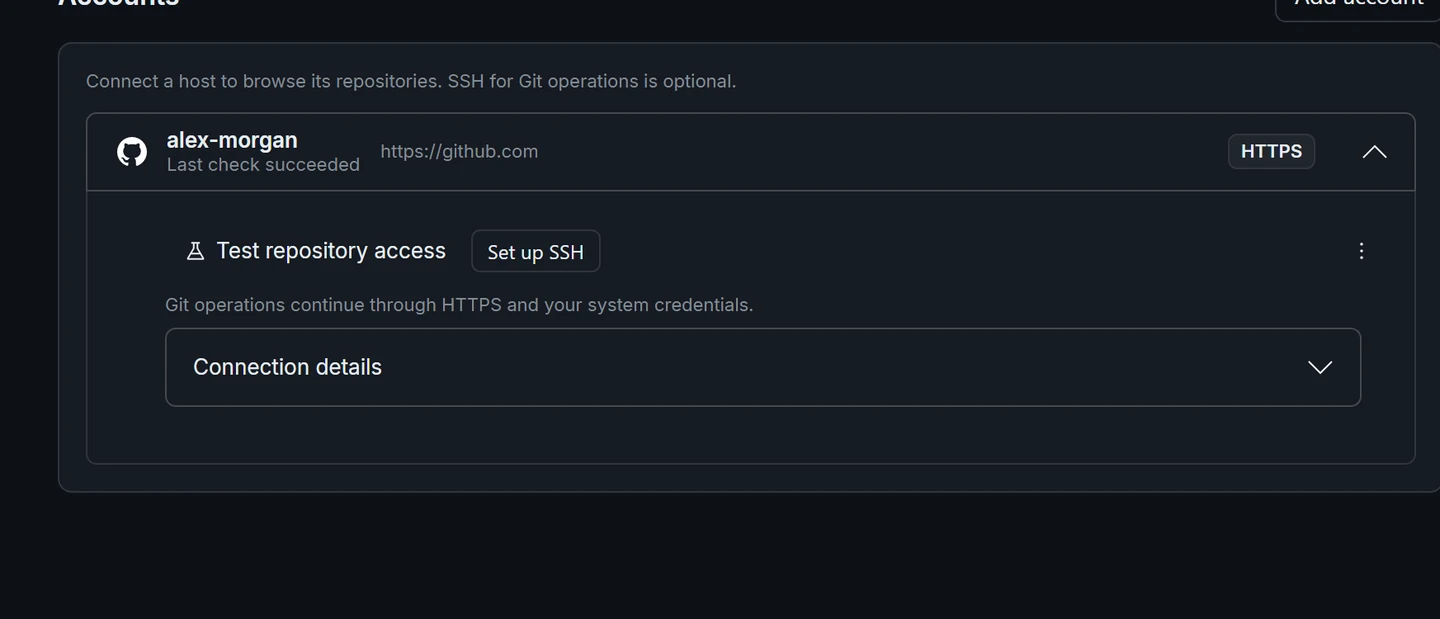
GitHub Desktop can work with existing local repositories, and its built-in collaboration flows are centered on GitHub and GitHub Enterprise Server. MoonGit documents connected accounts for GitHub, GitLab, Bitbucket, and Azure DevOps. Verify support for the exact host and organization setup you use before moving authentication or bookmarks. See GitHub Desktop’s documentation and MoonGit’s connected accounts guide.
Try the same change and handoff
Open the same local repository in both apps. Use a scratch branch and make a small change with an obvious outcome, such as correcting one sentence in a README. Review the diff, stage the change, and make a commit in one app. Refresh the other app and confirm that it sees the same commit. Both are reading the same checkout and Git history. If you plan to push, use one client at a time and check the active branch and configured remote.
Next take the commit through your ordinary team handoff. In a GitHub-centered workflow, GitHub Desktop can take you to the GitHub pull request. In MoonGit, inspect the commit and its CI status for the linked provider, then open the run or continue on your hosting site if you need the full review. Compare the clicks you repeat during a week, especially when a failing commit belongs to a second repository. See GitHub’s guide to creating a pull request from Desktop and finding the failed CI step.
Include one release task in the trial
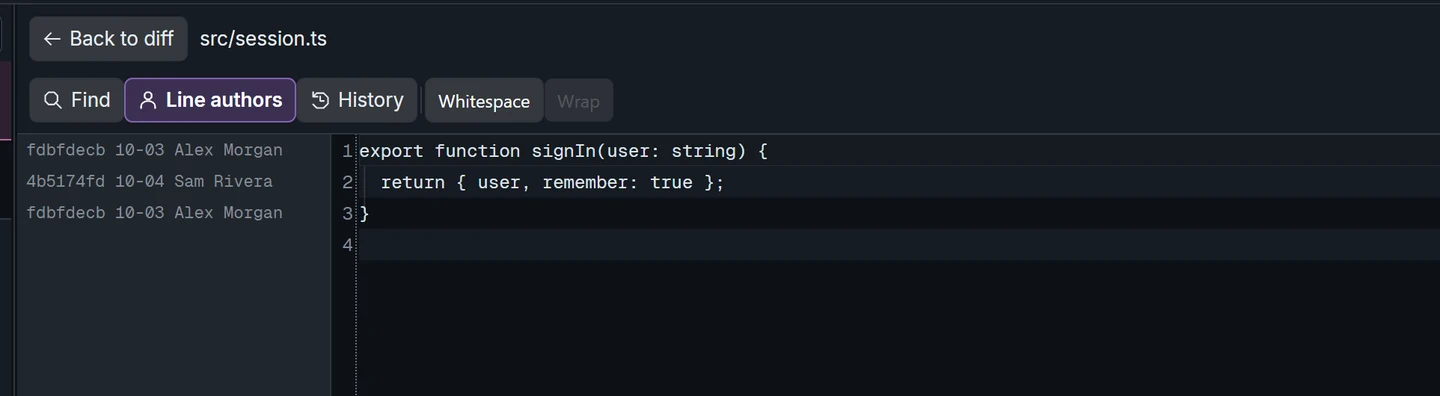
Pick an older commit that changed a file your team still uses. Find the commit, inspect that file, and decide whether its change needs to move to a maintenance branch. GitHub Desktop supports cherry-picking commits. In MoonGit, use commit history to narrow the search and compare the destination before applying the commit. Both approaches rely on the same Git branch and patch semantics.
GitHub Desktop also documents creating and managing worktrees. Test a second checkout if you routinely move between release and feature work. Give the checkouts distinct folder names and see which app makes the next action easiest to verify.