 MoonGit
Visual Studio Git vs MoonGit: A workflow for .NET developers
Follow one .NET fix across code, tests, and two Git repositories. See when Visual Studio’s Git tools are enough and where MoonGit can help with review.
If you spend the day in a single .NET solution, Git Changes in Visual Studio is a convenient place to review and commit a fix. MoonGit gives you a separate Git workspace when you’re following a change across repos, inspecting release history, or comparing revisions without reloading a solution. Both work with local Git repositories.
This walkthrough uses a service repo and a separate integration-test repo. The Visual Studio steps follow Microsoft’s built-in Git documentation. Screenshots show the equivalent investigation in MoonGit.
Fix the code and run tests in Visual Studio
You’ve changed a service so it returns a validation error for an empty request. Keep Visual Studio on the solution containing the service and its unit tests. Use Git Changes to confirm the active branch, open the diff, and stage the service change and its tests together. Run the test that exercises the blank request before you commit. If everything you need fits in that one solution, finish the workflow there.
Visual Studio’s Git Repository window also shows branch history, comparisons, and commit actions. Use it when you want to stay in the IDE. Microsoft documents browsing history and managing branches and commits.
Check the second repository before you hand off
Open the service and the integration-test checkout as two repository tabs in MoonGit. The tabs are useful if the integration-test project lives outside the current solution or you already have separate development folders. Each repository keeps its own branch, working tree, and staging area. After switching tabs, recheck the repository and active branch before staging or pushing.
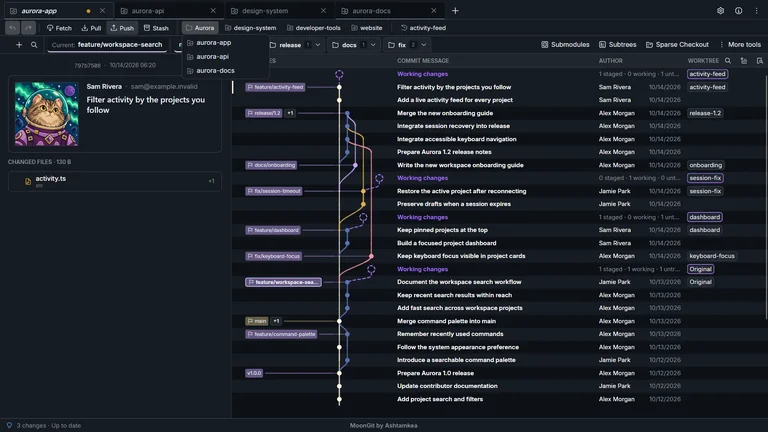
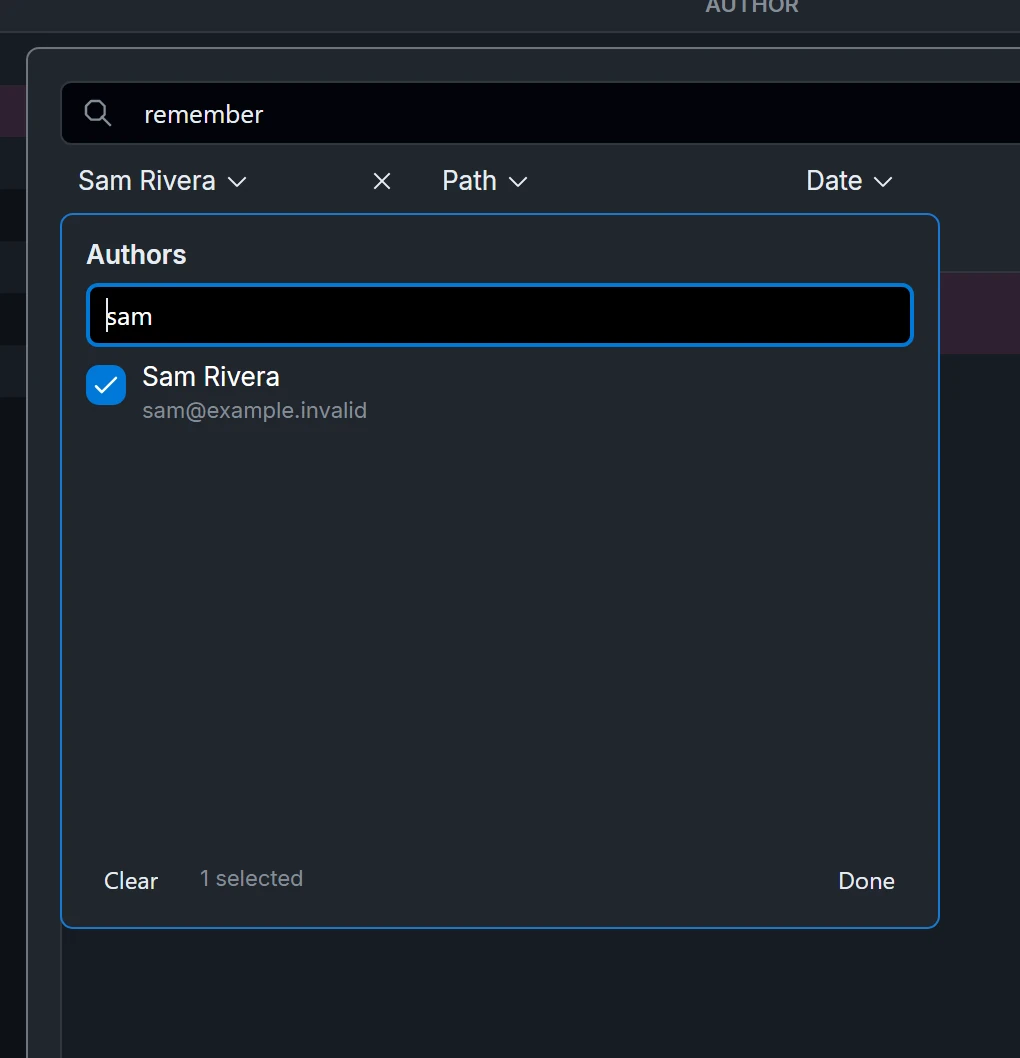
In the integration-test repository, look first for an existing test that already expects the validation error. In the service repository, trace the validation change back to the branch that first carried it. A path filter can isolate the handler and related tests when the release history contains many other changes.
Compare against the release branch
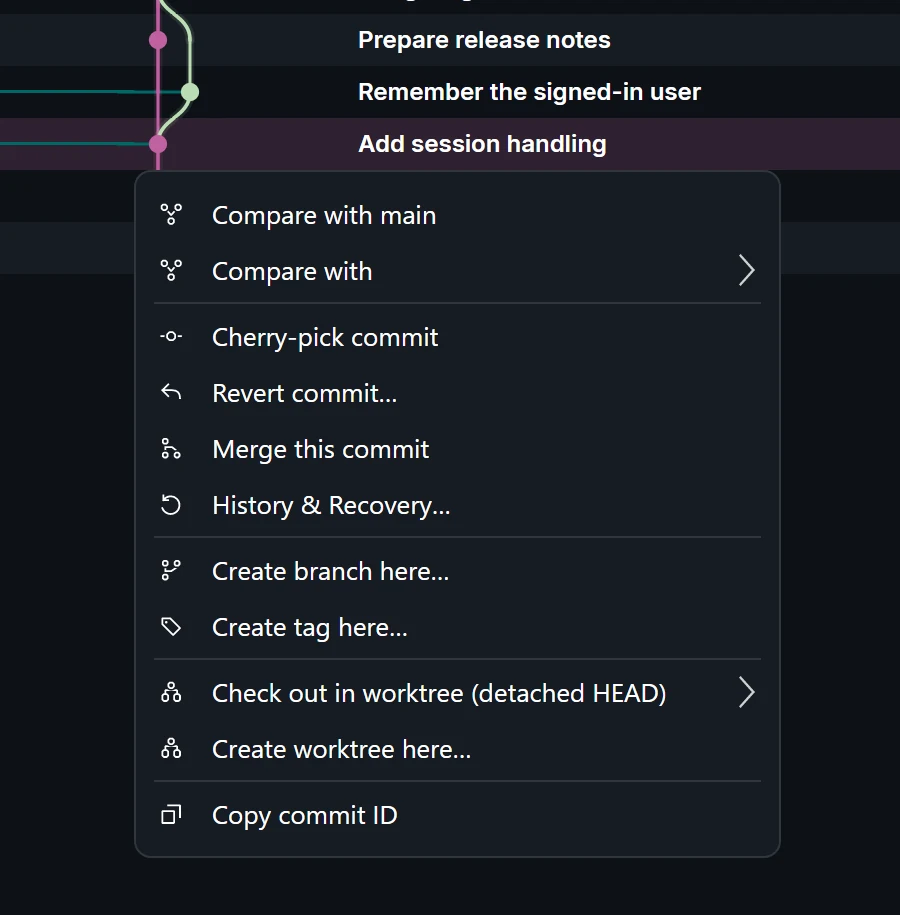
If support needs the fix on an older release, refresh the service repo’s remote refs and compare the release branch with the change you intend to move. Check the handler, its dependencies, and the relevant test project. A mechanical cherry-pick can succeed while the old release still behaves differently, so rerun the affected tests from the release checkout.
| Situation | Suggested workflow |
|---|---|
| One solution, one branch, one tested change | Stay in Visual Studio’s Git Changes. |
| Several repositories contribute to the same fix | Keep their checkouts visible in MoonGit and run each test suite in its own folder. |
| A release needs a subset of main | Compare the revisions, then follow the cherry-pick walkthrough. |
| The same change may already be in the release | Check commit ancestry and patch equivalence before doing more work. |
The useful habit is to leave your debugger on the code you’re investigating while you verify the exact repository, branch, and commit for the release work.