 MoonGit
VS Code Git vs MoonGit: When does a dedicated Git client help?
Compare how VS Code and MoonGit handle partial staging, commit history, and parallel branches. Try the same three tasks with a repository you already use.
VS Code’s built-in Git is a good fit when the next Git decision starts in the file you’re editing. MoonGit is a Windows Git workspace for when you need to answer questions about several files, branches, checkouts, or repositories. You can open the same local checkout in both.
Try the three tasks below with a repository you know. Use a disposable checkout or a scratch branch if you’re going to commit. We tested partial staging in VS Code 1.146 on Windows. The history and worktree steps draw on Microsoft’s documentation. The MoonGit screenshots show working examples from our app.
| If you regularly need to… | Start here |
|---|---|
| Stage part of the file you just edited | Try VS Code’s Stage Selected Ranges. |
| Compare a commit with another revision before you move it | Try MoonGit’s commit graph and revision comparison. |
| Edit or debug two branches side by side | Open a separate Git worktree in each VS Code window, or manage the checkouts in MoonGit and open each folder in your editor. |
1. Stage a fix and leave the cleanup for later
Make two unrelated edits in one tracked file. In VS Code, open its diff from Source Control, select the lines for the fix, and run Git: Stage Selected Ranges from the Command Palette. In our example, we staged the retry limit and left the debug logging edit in the working tree. The file appeared in both Staged Changes and Changes.
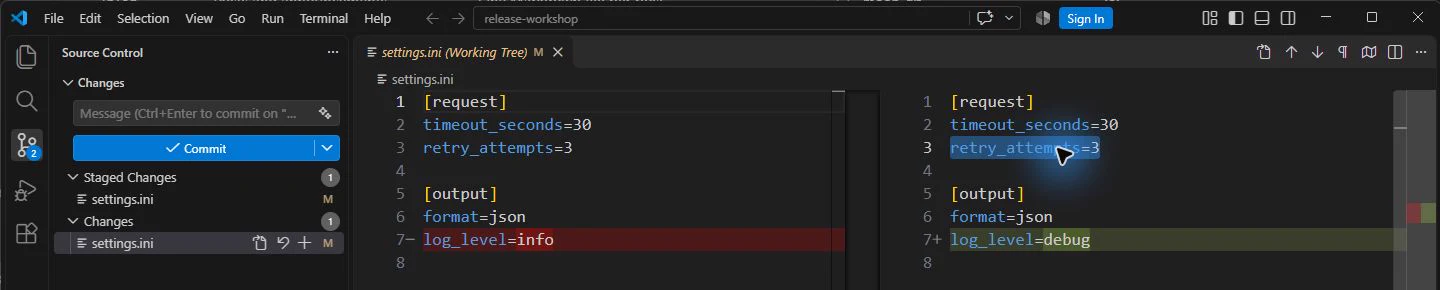
In MoonGit, open the file under Working tree, select the lines belonging to the fix, and use Stage selected lines. Review the staged and unstaged versions separately. Use the same check from either app if you want a second view.
git diff --cached
git diff
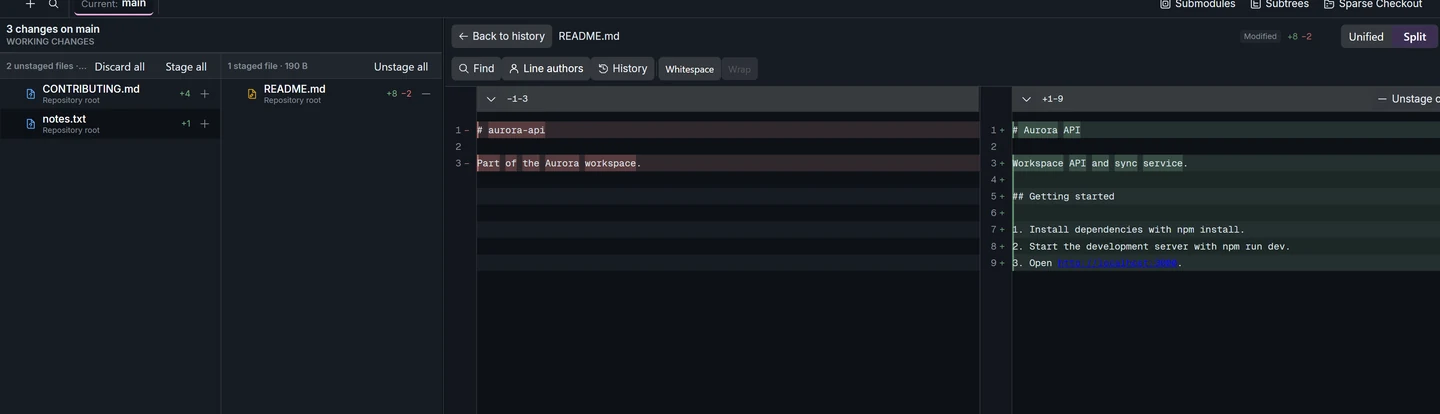
Try staging in the editor first. If you regularly inspect a dozen files before deciding what belongs together, try managing the whole commit in MoonGit’s staging view. If you edit a line after staging it, both apps are reading an index that still contains the earlier version.
2. Find a commit you may need to backport
Pick a change with a recognizable subject. VS Code’s Source Control Graph displays the relationship between branches and commits, and selecting a commit opens its changed files for inspection. In MoonGit, start from the commit graph, narrow the list with a history filter, and compare the commit with the branch or revision you care about. Use the comparison to check how the surrounding code has moved.
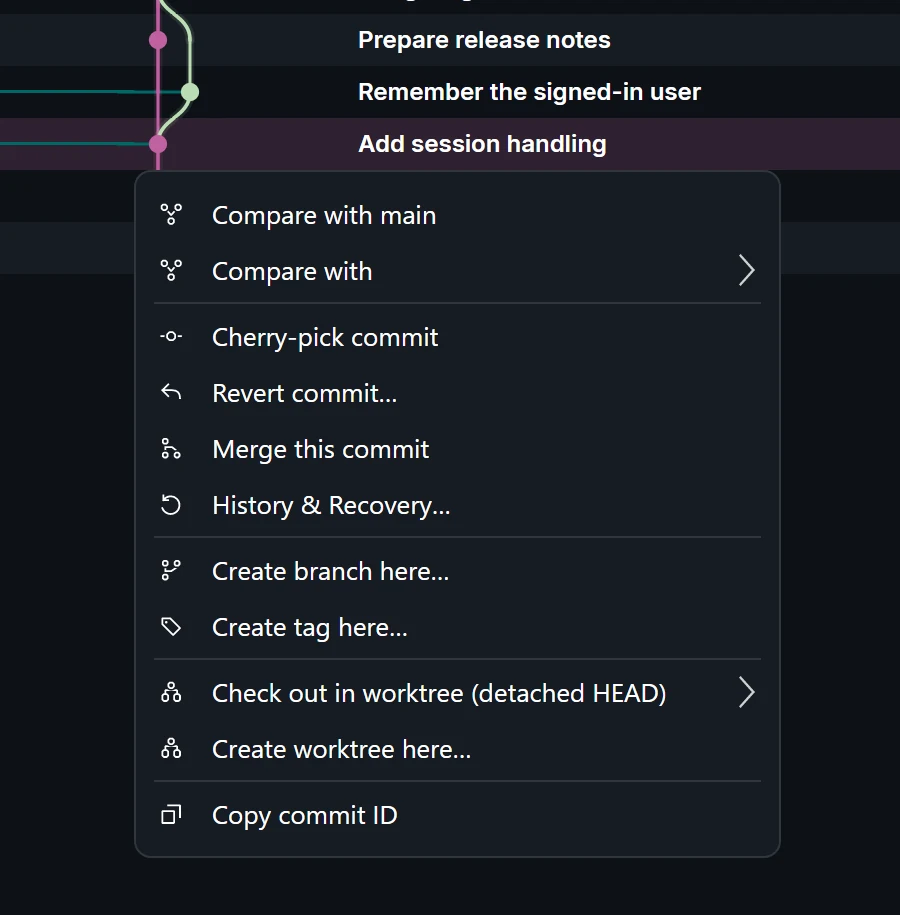
Ahead and behind counts describe ancestry. If a fix was cherry-picked, its original commit may be absent even though a similar patch reached the release. Use the branch containment walkthrough to check both.
3. Keep a fix open next to your feature work
Create a worktree for the fix from the branch you intend to patch. VS Code can create and open worktrees from Source Control. MoonGit’s worktree manager shows a checkout’s folder and branch, which helps when it’s time to find or remove it. Each editor window or desktop command must target the correct folder. Run git status -sb in each if the two branches look similar.
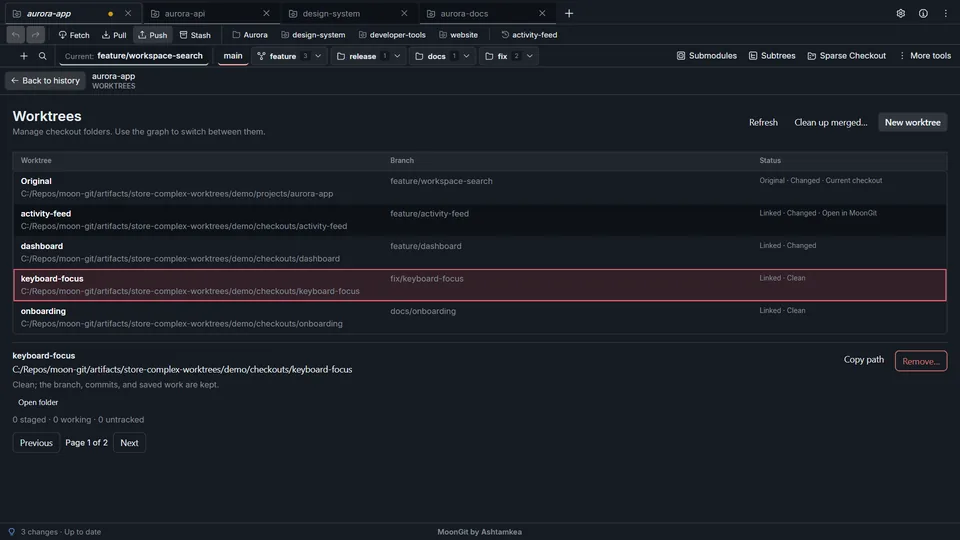
If the interruption is brief and you can reuse one folder, a stash may be quicker. If the feature and the fix each need their own terminal or build outputs, two folders are easier to reason about. You can keep VS Code for editing and use MoonGit for the graph and checkout review when that makes your next action clearer.
See Microsoft’s partial staging guide and branches and worktrees guide for the built-in workflows.