 MoonGit
How to backport a fix with Git cherry-pick
Move one tested fix to a maintenance branch, review the new commit, and verify the release contains the patch without bringing along unrelated work.
Use git cherry-pick when a maintenance branch needs a particular fix from a newer branch. Git applies the change introduced by that commit to the checked-out branch and creates a new commit on success. The new commit will normally have a different ID. Start by checking what the release already has.
Find the smallest complete change
In this example, main contains a retry fix followed by an unrelated refactor. The fix includes a regression test. You want the fix and its test on release/1.8. Fetch the remote references, inspect the commit, and compare it with the release.
git fetch origin
git show --stat <fix-sha>
git show <fix-sha>
git cherry -v origin/release/1.8 origin/main
A minus sign in git cherry means Git found an equivalent patch upstream by its patch comparison. A plus sign means Git found no equivalent patch through that comparison. A squash or a manually adapted fix can still require inspection of the relevant files. See how to check whether a fix already reached a release.
Also check the surrounding code. If the retry fix calls a helper added in an earlier commit, either bring over the needed prerequisite in order or make a release-specific change and test it. The source diff gives you the smallest safe candidate to review.
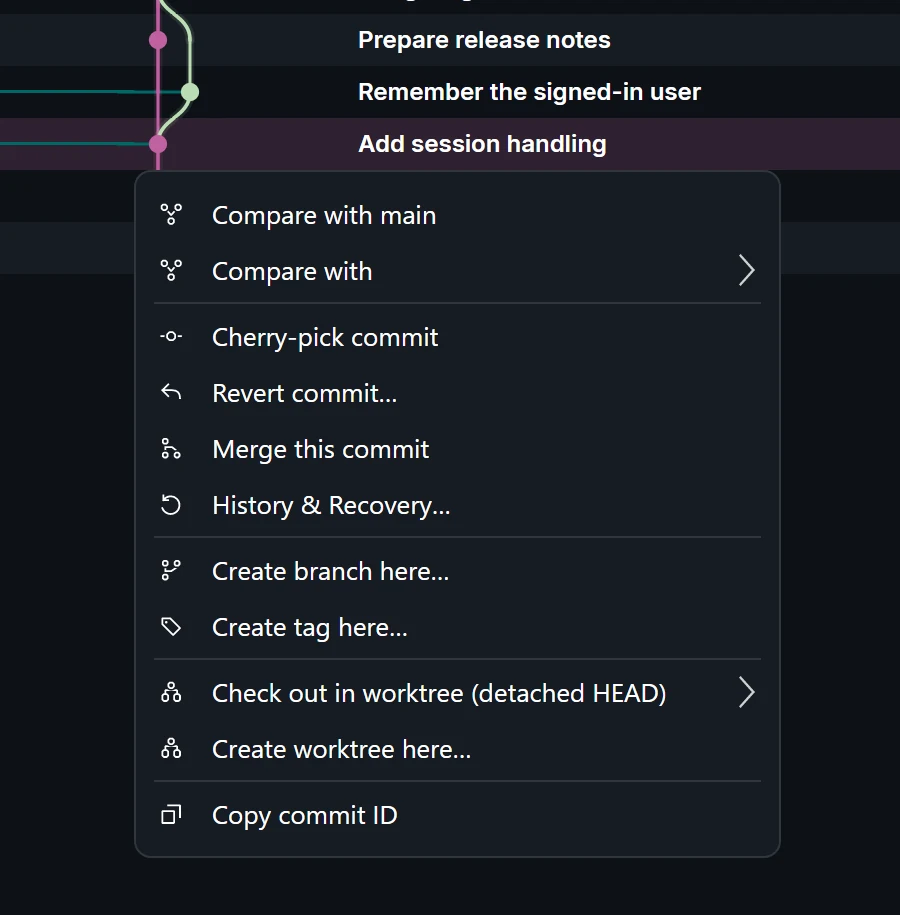
Apply the fix from the destination checkout
Use a clean branch starting from the current release. A separate Git worktree keeps ongoing edits in your usual folder out of the way.
git switch -c backport/retry-fix origin/release/1.8
git status -sb
git cherry-pick -x <fix-sha>
Replace the placeholder with the actual commit ID. The optional -x records the original commit ID in the message for a clean cherry-pick, which helps when both histories are visible to reviewers. If you resolve a conflict, check the resulting message and record the source ID in the pull request if needed.
In MoonGit, confirm the backport branch is the active checkout, find the source change in the graph, open its commit actions, and choose Cherry-pick commit. If Git stops on a conflict, compare the current release code with the incoming change, resolve the file, and continue the cherry-pick. Through Git, use git add -- <resolved-path> and git cherry-pick --continue. If the backport should be abandoned, git cherry-pick --abort restores the state before the operation.
Verify what the release will receive
git log --oneline origin/release/1.8..HEAD
git diff --stat origin/release/1.8...HEAD
git diff origin/release/1.8...HEAD
You should see your backport and the files you expect. Run the regression test on this branch. Push the backport branch and open a pull request that targets the maintenance branch. Include the source commit and any release-specific edits in the description so the release reviewer can check them.
See the MoonGit commit actions guide, the conflict walkthrough, and the Git cherry-pick manual.