 MoonGit
Undo or move a commit
Revert a shared change, cherry-pick a fix onto another branch, or recover an old local commit from the reflog.
Undo a change on a shared branch
Check out the shared branch and start with a clean working tree. Open the unwanted commit's context menu and select Revert commit…. Review the preview and confirm. Git creates a commit that reverses the selected change. Check the new diff and run the relevant checks before pushing.
For a merge commit, the menu offers Revert merge (choose parent). Inspect the graph and compare against that parent before proceeding. The choice changes which part of the merge is reversed.
Bring a fix onto another branch
Suppose “Fix empty search results” is on main and you need it on release/1.0. Check out release/1.0, find the source commit, and select Cherry-pick commit from its context menu. Confirm the destination branch. Inspect the resulting commit on release/1.0 and verify that it contains the intended patch. It usually has a different hash.
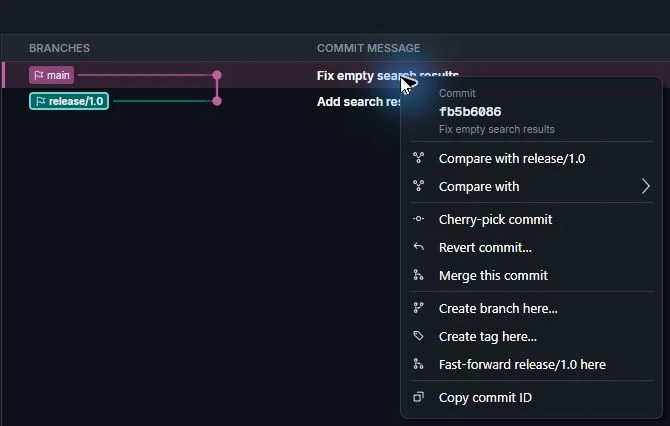
In the confirmation, check the destination branch and the changed-file preview before selecting Cherry-pick. The sample below copies the empty-state fix from main to release/1.0. The destination commit is 348407bf; the source was fb5b6086. Inspecting search.txt confirms that the added line is present in the new commit.
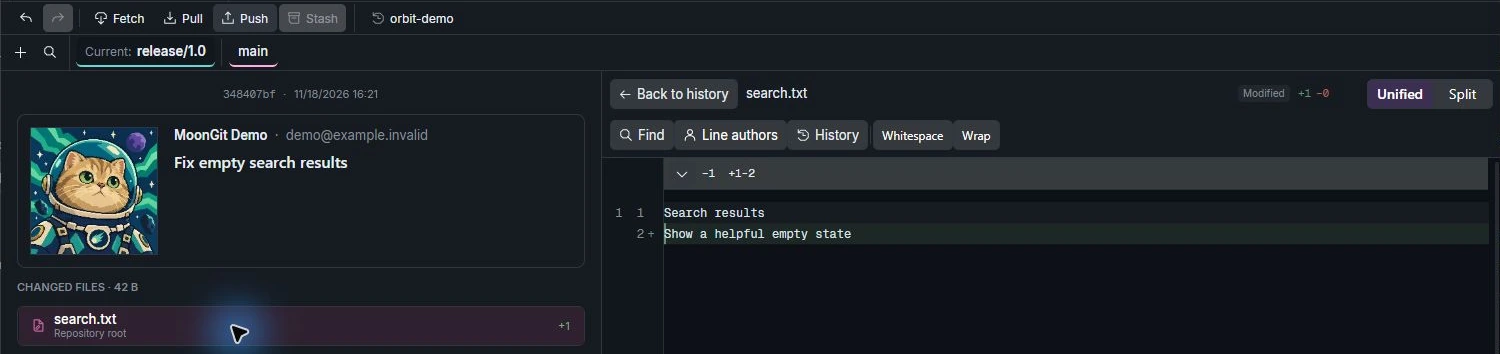
MoonGit reports the completed operation through an in-app notification. This is a notification inside the MoonGit window; it does not establish Windows notification-center support.

If Git stops on conflicts, use Resolve merge and rebase conflicts and continue from the paused operation.
Recover a lost local commit
If a branch moved and you lost sight of a commit, open History & Recovery → Reflog. Find the old tip by its message and commit ID, then use Create branch so you can inspect the recovered history. Verify the file changes before deciding whether to switch to that branch or cherry-pick a commit from it.