 MoonGit

 Deutsch
 Español
 Français
 日本語
 עברית
 Português (Brasil)
 繁體中文
What's new in MoonGit 1.0.12: Branch Review, Open in MoonGit, and worktree cleanup
A tour of MoonGit 1.0.12: review and clean up merged branches safely, discard and remove worktrees from the graph, and open a local Git checkout from File Explorer.
MoonGit 1.0.12 adds the redesigned Branch Review, a file-by-file review before discarding and removing a worktree from the graph, and Open in MoonGit in Windows File Explorer. Use Branch Review for branch cleanup and the graph’s worktree menu when you want to retire a checkout folder.
MoonGit 1.0.12 is available now on the Microsoft Store.
Branch Review: clean up merged branches with evidence
Branch Review is the radar button in the branch bar. Choose Local or Remote, then pick the baseline beside vs: main, master or develop. Branches are sorted into three tabs:
- Merged: the baseline already contains the branch tip, so deleting the branch loses no commits.
- Likely merged: the work probably arrived another way, for example through a squash or rebase. Look before you delete.
- Unmerged: the branch has commits the baseline does not.
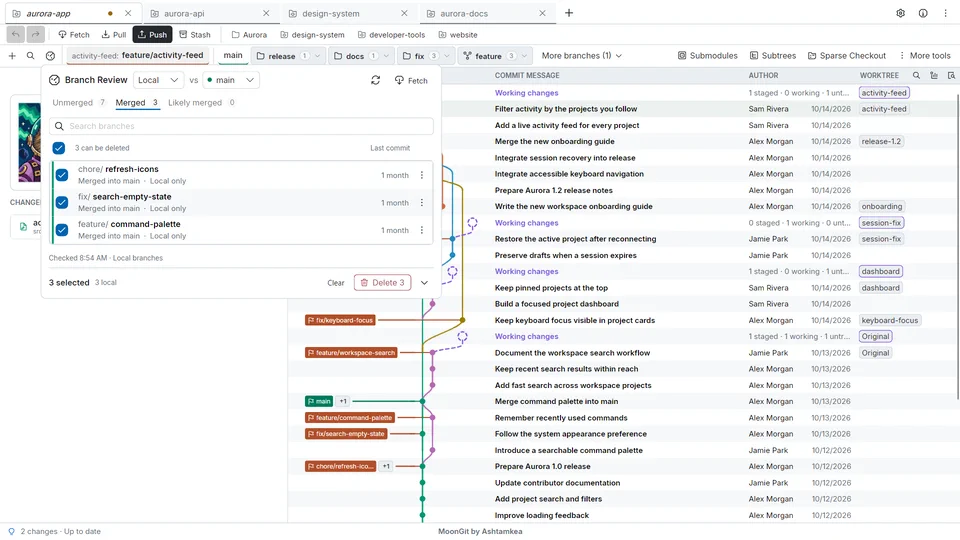
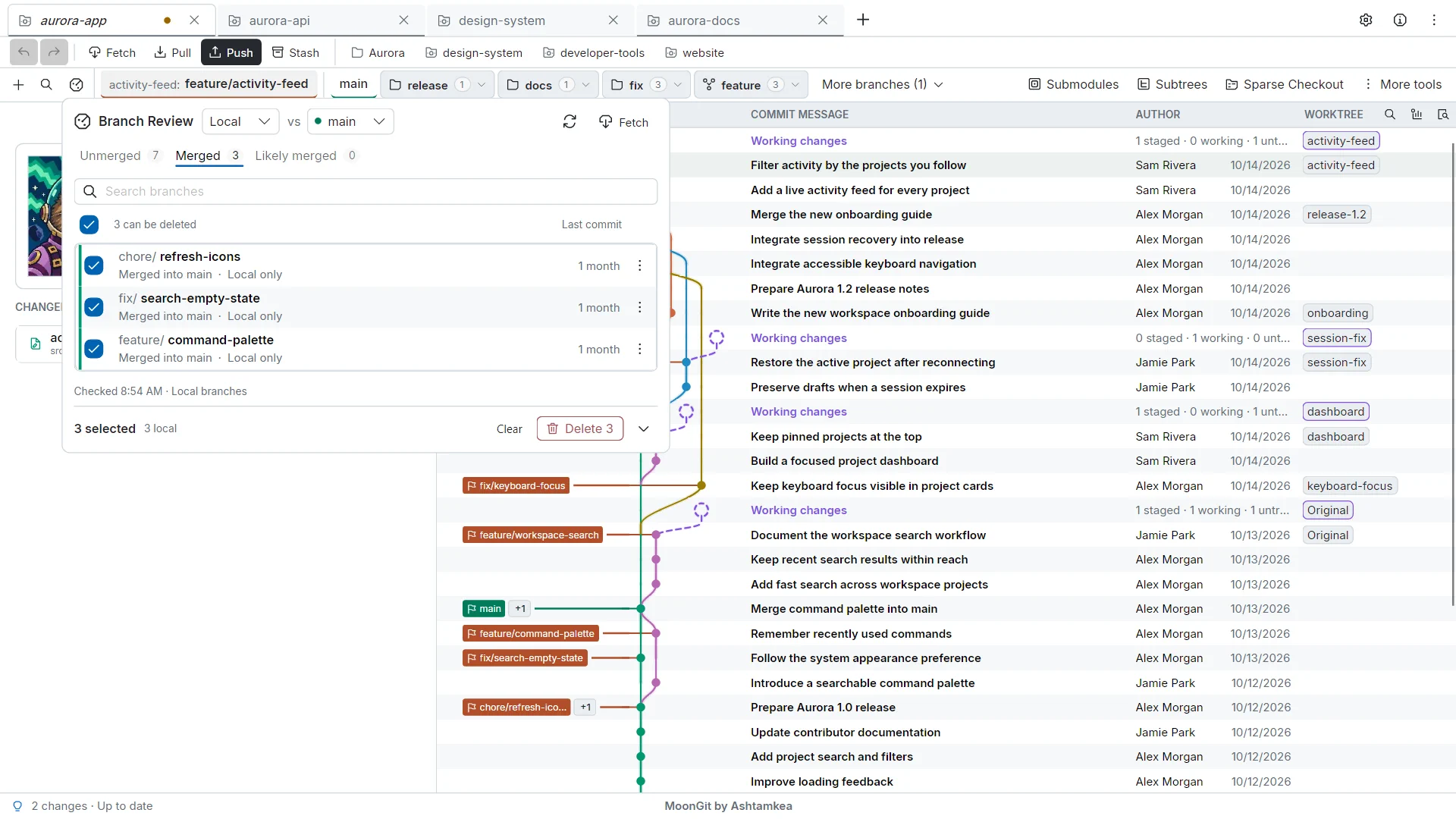
Select the branches you want to retire and choose Delete. The confirmation names every local branch, remote branch and linked checkout it will touch, and asks for an explicit acknowledgement when a branch still has unmerged or remote-only history. While the cleanup runs, Branch Review shows each step, file counts and the elapsed time, and Stop ends the remaining work after the current step.
Branch Review also opens faster in 1.0.12 and deletes several merged branches in a fraction of the time it took before. It stays open when you jump to a branch tip in the graph, so you can check a branch and come straight back to the list. For a deeper look at the comparisons, read Clean up Git branches with Branch Review and the Branch Review guide.
Discard and remove a worktree from the graph
The graph already shows every linked worktree in one place. In 1.0.12 you can retire one from there too. Open a worktree's menu in the graph and choose Discard changes and remove worktree…. Before anything is deleted, MoonGit reads the checkout and shows:
- the checkout folder that will be removed,
- a summary of staged, working, untracked and ignored files,
- the exact files whose changes will be discarded.
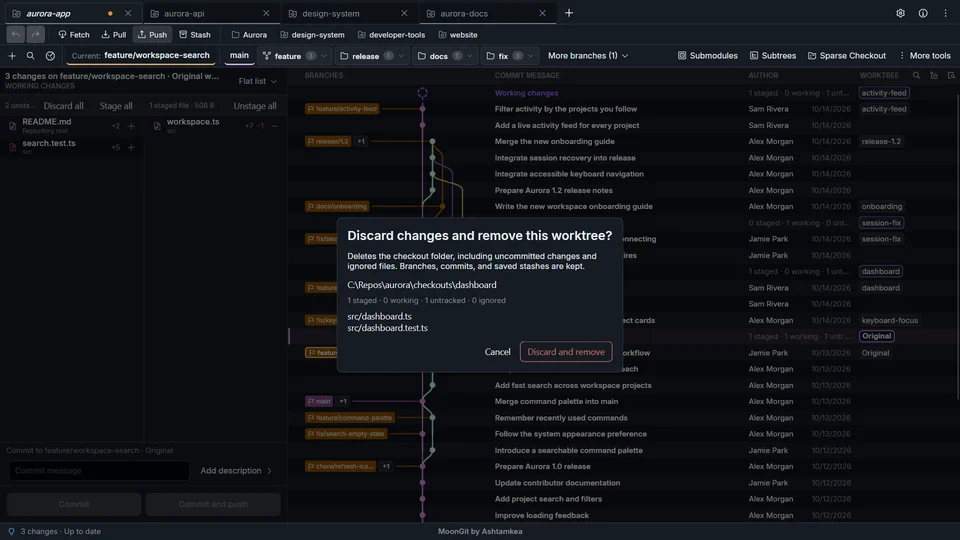
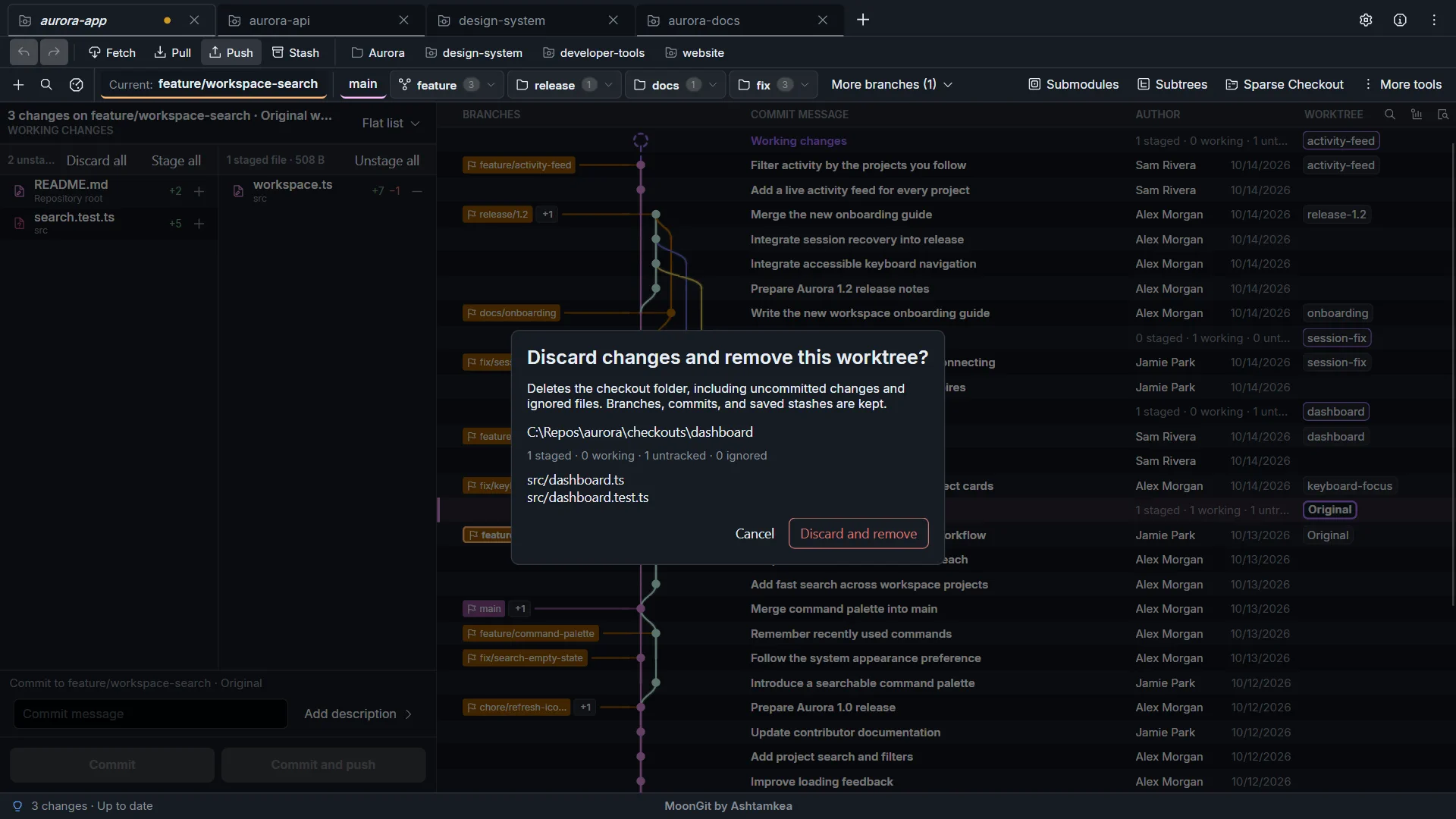
Branches, commits and saved stashes are kept; only the folder and its uncommitted work go. This works for the worktree you are currently using as well: its menu item reads Discard changes, remove worktree, and return to Original…, and tabs that use it return to Original on its existing branch. The Worktrees panel offers the same reviewed Discard and remove… for a linked checkout with unsaved work, instead of refusing until you clean it up by hand.
If you want to keep the changes, cancel and commit or stash them first. See retire a worktree safely.
Open in MoonGit from File Explorer
Right-click a folder, or the empty space inside one, and choose Open in MoonGit. A subfolder opens the repository that contains it, a linked worktree opens in its own checkout, and if MoonGit is already running, the existing window takes the request and brings the repository forward. Folders that are not Git repositories get a short message; MoonGit never initializes a repository for you.
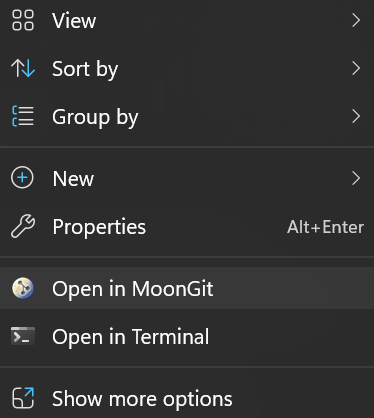
Follow the File Explorer steps.
Smaller improvements
- Stash inspector: each stash now lists its saved files, and selecting one shows its diff, so you can find the right stash before applying it.
- CI status: a commit's CI results fit in one inspector card, with a clearer prompt when a CI account needs access.
- Checkout status: when
.gitattributesnames a filter driver such as Git LFS, MoonGit reads the status with Git. A file Git reports as modified, for example after you add an LFS rule, now appears in the working changes instead of going missing. - Microsoft Store: the trial countdown appears in the footer, and the one-time rating prompt includes a Share action.
- Fix: returning to a tab with uncommitted changes no longer plays a save sound when nothing was saved.
Already in MoonGit: the Git CLI
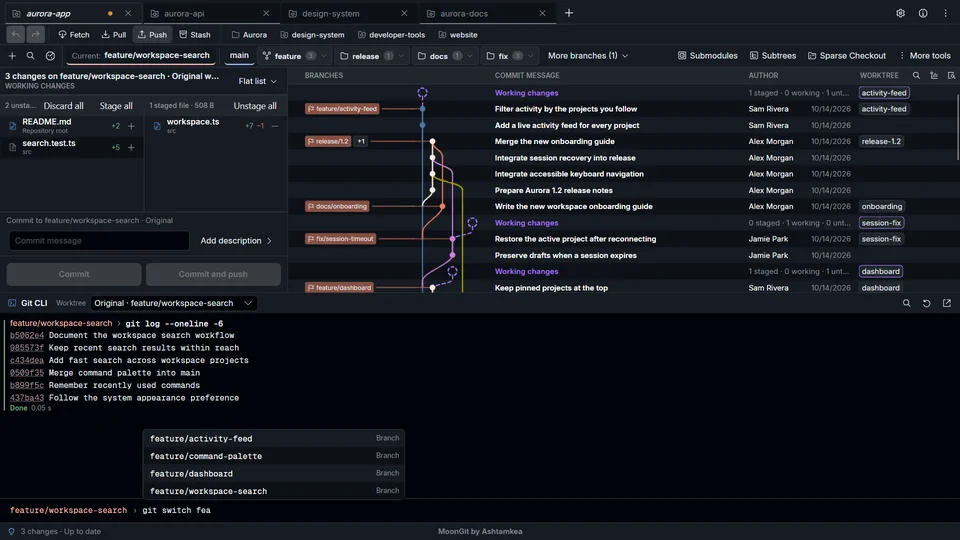
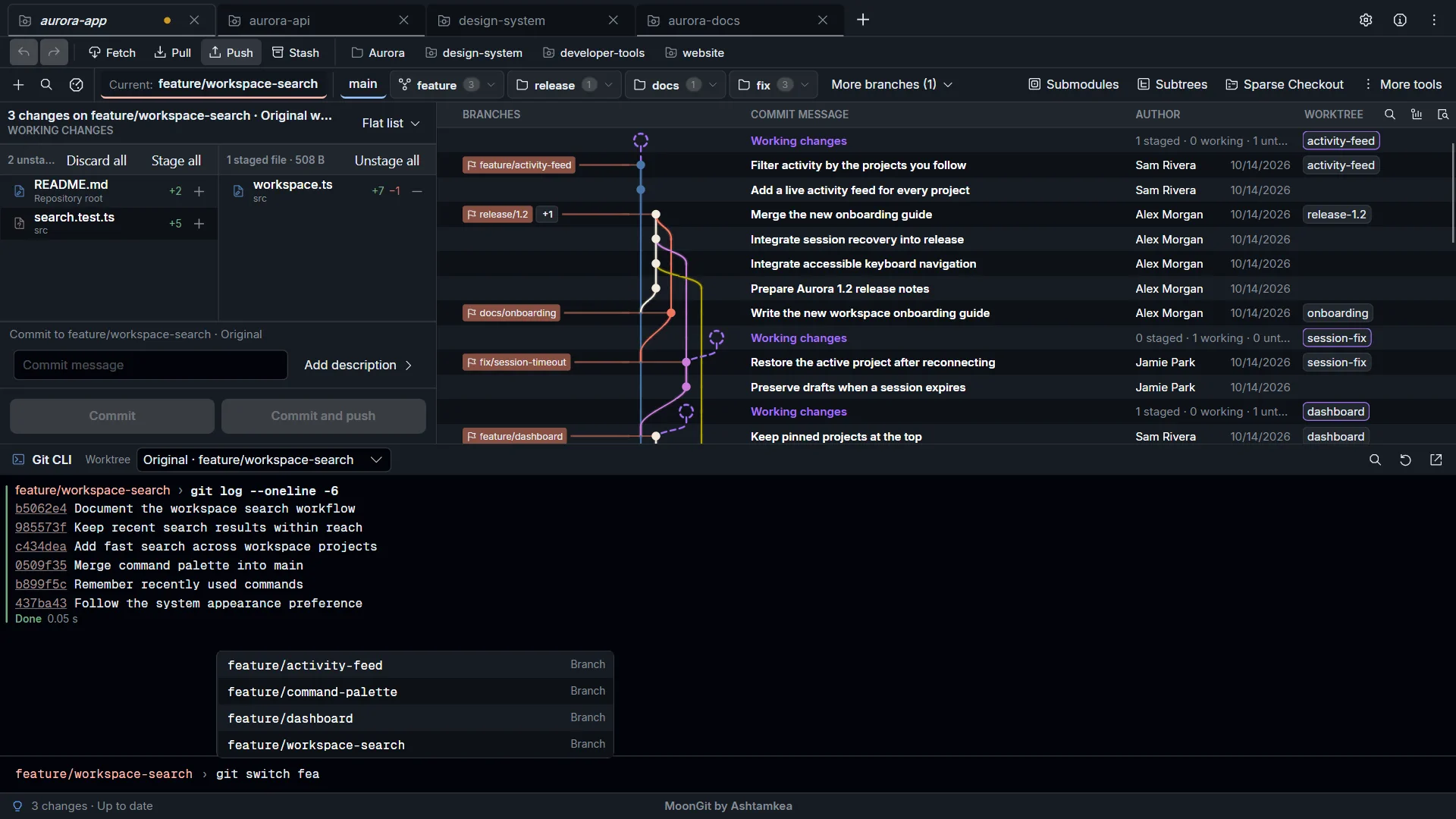
If you prefer typing, the optional built-in Git CLI (turn it on in Settings › Git CLI) runs Git commands in the selected checkout, with Tab completion for branches and paths. Click a commit hash in its output to open that commit in the graph.
Get the update
MoonGit 1.0.12 is up on the Microsoft Store. If you already have MoonGit, check for updates in Microsoft Store, then confirm your version in About.
Questions or a problem with the update? Contact support with your MoonGit version from About.