 MoonGit

 Deutsch
 Español
 Français
 日本語
 עברית
 Português (Brasil)
 繁體中文
How to use Git worktrees on Windows to review a branch
Open a teammate’s branch in a second folder, run its code, and keep your staged and unstaged edits in place. Follow the MoonGit steps or try the PowerShell example.
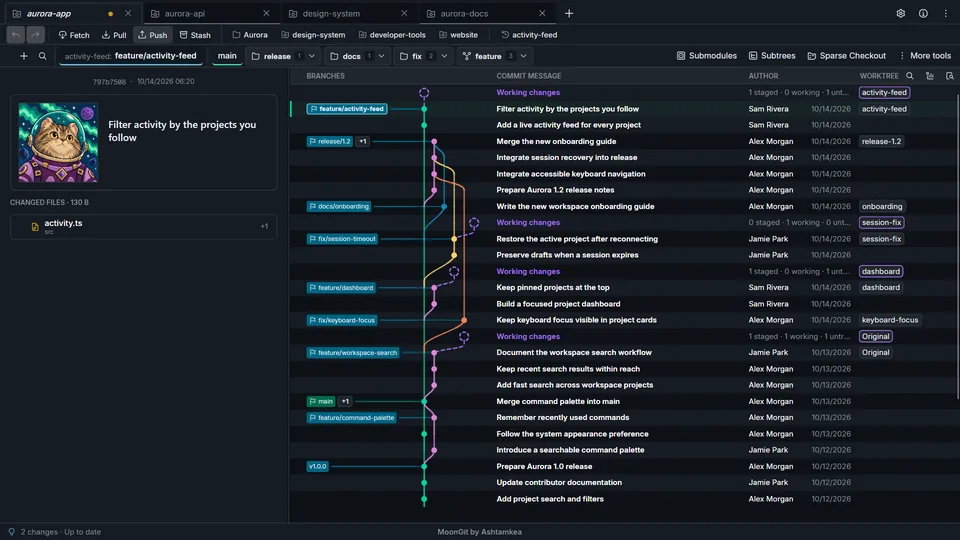
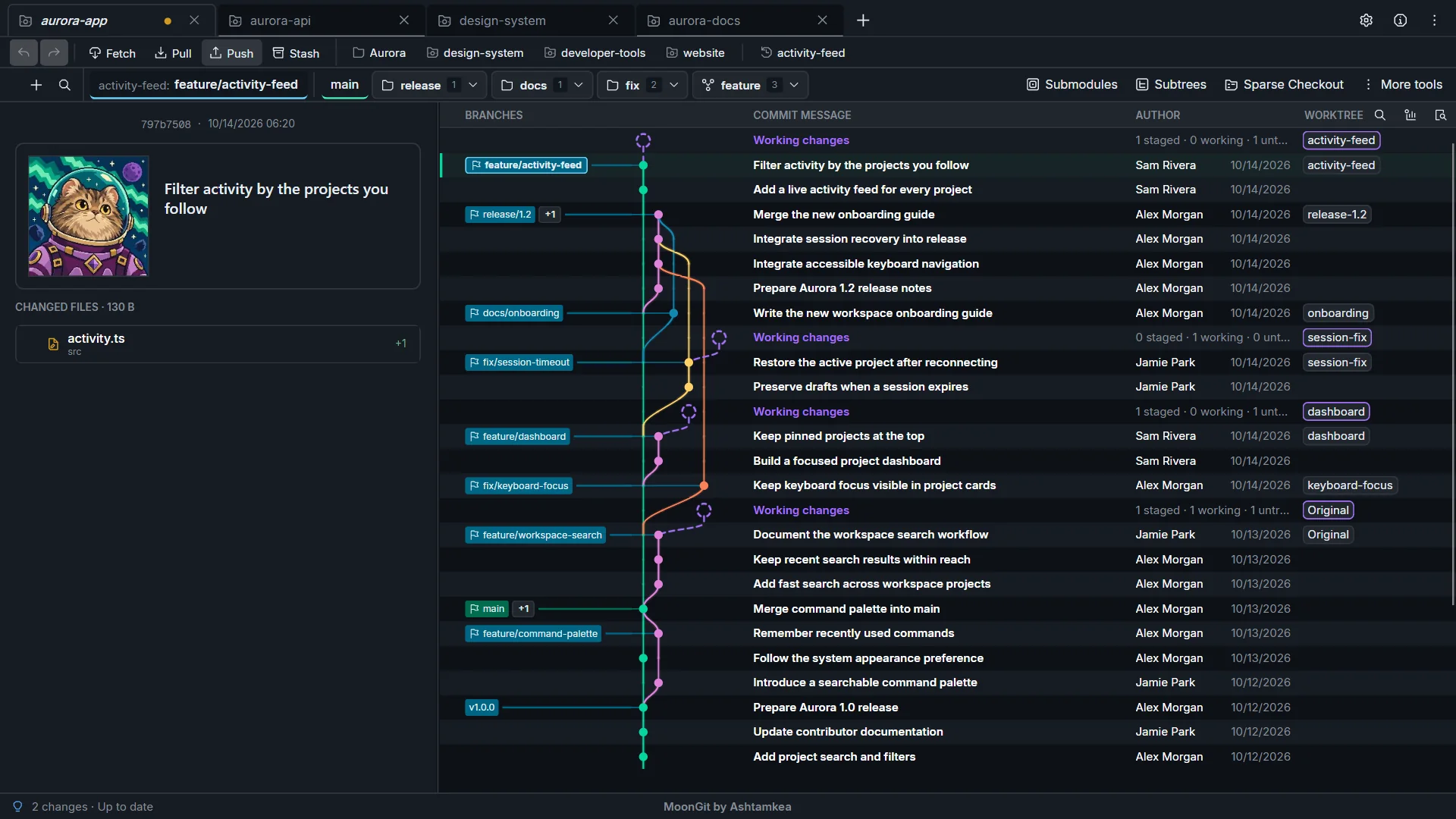
A Git worktree lets you check out a teammate’s branch in a second folder while your feature branch stays open with its staged and unstaged edits. On Windows, MoonGit shows linked worktrees in one commit graph, so you can see each checkout’s branch and open the working changes for the folder that owns them.
Plan the two checkouts
| Purpose | Example folder | Branch |
|---|---|---|
| Your current work | C:\Dev\orbit |
feature/activity-feed |
| The review | C:\Dev\orbit-review |
review/keyboard-focus |
Have the review branch available locally before creating the worktree. If your teammate pushed it to a remote you can fetch, fetch first, then create a local review branch at the fetched tip. You can also right-click the fetched tip commit in MoonGit and select Create worktree here… to create the review branch and folder together. Check that the commit matches what you were asked to review.
Open the review branch in MoonGit
- Open your feature checkout in MoonGit and note what’s staged and what’s unstaged. Open Worktrees in the repository, or enable it under Settings → Advanced features if it’s hidden.
- Choose New worktree. To use a local branch that already exists, clear Create a new branch and choose
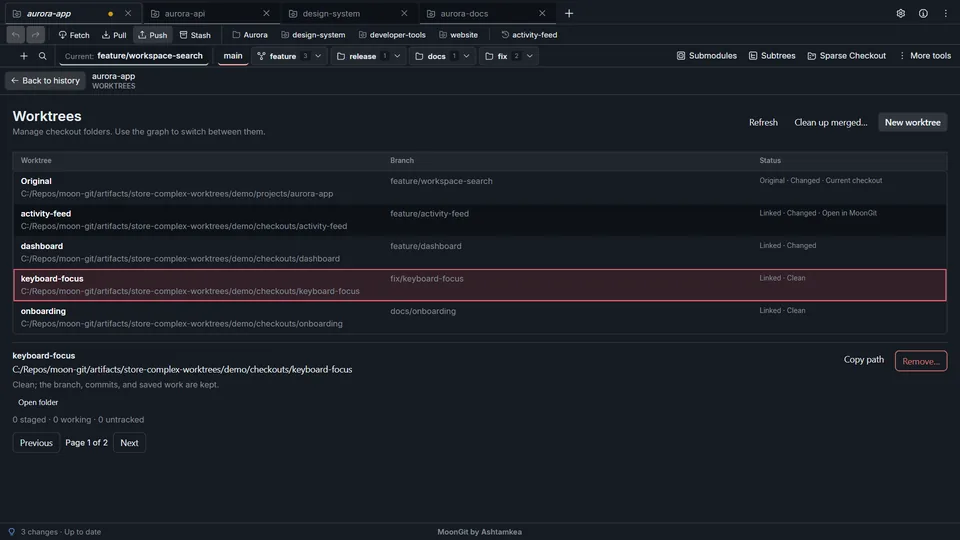
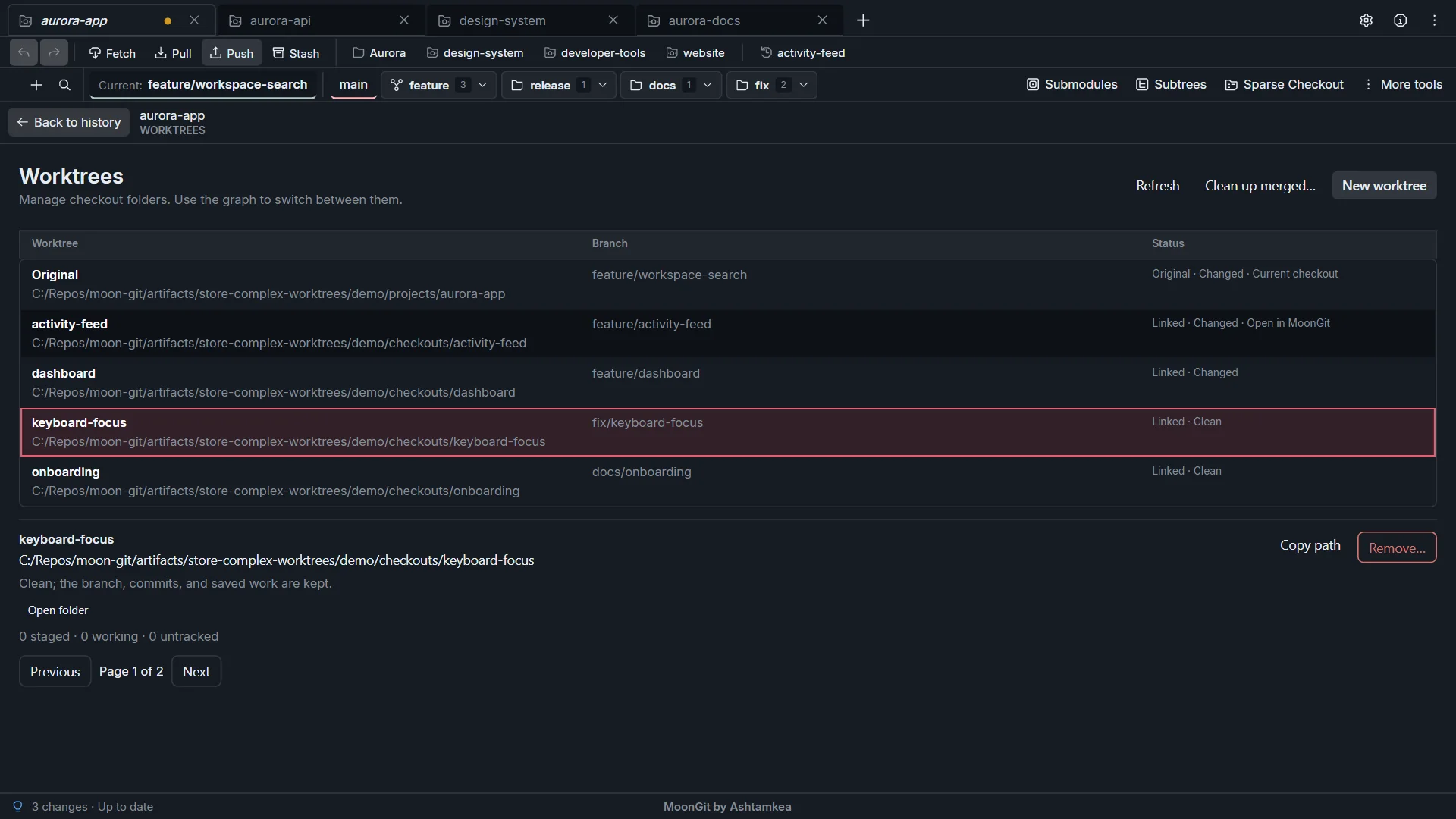
review/keyboard-focus. Set New checkout folder toC:\Dev\orbit-reviewand select Create worktree. - Select the review checkout in the Worktrees list. Verify its branch and path. Open the folder in a second editor window and run your project’s setup and tests there. If both checkouts run a dev server, give each server its own port.
- Return to the MoonGit graph and use the Worktree column to find the feature and review checkouts. Use View changes from the Worktrees list to inspect a specific checkout. Verify the folder and branch before making changes, especially when two editor windows are open.
Review the commits and run the code
Identify the branch the changes are intended to merge into. In the MoonGit graph, select the review tip and inspect its commits and file diffs. For an overview, use Compare with to compare the review tip with the commit where it diverged from the target branch. If the target branch has moved, find that shared starting point with git merge-base main HEAD from the review checkout, using your actual target branch in place of main. Compare revisions in MoonGit
Open the changed files in your review editor to trace how they behave together. Run the relevant test or reproduce the reported behavior in that folder. Check its status again afterward, since a test or build can leave generated files behind.
Try the same workflow in PowerShell
This exercise creates a throwaway repository, a local review branch, and a feature file with both staged and unstaged changes. It needs Git for Windows and uses a uniquely named folder under your temporary directory. No remote is required.
$lab = Join-Path ([IO.Path]::GetTempPath()) ("moongit-worktrees-" + [guid]::NewGuid().ToString("N"))
$feature = Join-Path $lab "orbit"
$review = Join-Path $lab "orbit-review"
New-Item -ItemType Directory -Path $feature | Out-Null

git -C $feature init --initial-branch=main
Set-Content -LiteralPath (Join-Path $feature "README.md") "# Orbit"
git -C $feature add README.md
git -C $feature -c 'user.name=MoonGit Demo' -c 'user.email=demo@example.com' commit -m "Add Orbit README"

git -C $feature switch -c review/keyboard-focus
Set-Content -LiteralPath (Join-Path $feature "keyboard.txt") "Tab restores focus"
git -C $feature add keyboard.txt
git -C $feature -c 'user.name=MoonGit Demo' -c 'user.email=demo@example.com' commit -m "Describe keyboard focus"

git -C $feature switch -c feature/activity-feed main
Set-Content -LiteralPath (Join-Path $feature "activity-feed.txt") "Staged activity draft"
git -C $feature add activity-feed.txt
Add-Content -LiteralPath (Join-Path $feature "activity-feed.txt") "Unstaged follow-up"
Open the path in $feature in MoonGit and follow the steps above using the path in $review for the new folder. Alternatively, create the review checkout with Git.
git -C $feature worktree add $review review/keyboard-focus
Check the result in both folders.
git -C $feature status --short --branch
git -C $review status --short --branch
git -C $review log -1 --oneline
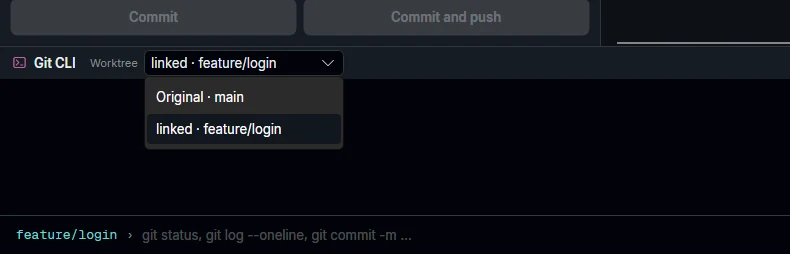
You should see AM activity-feed.txt on feature/activity-feed. The first column reports the staged addition and the second reports the later edit. The review checkout should show only ## review/keyboard-focus in the status output, and its tip should be Describe keyboard focus. To check from inside MoonGit, select the checkout in Git CLI’s Worktree menu and run git status --short --branch.
Finish the review and remove the checkout
If you made edits during testing, inspect what you want to keep before removing the folder. Check for staged, unstaged, untracked, and ignored files. Close the review editor and stop processes running there. In MoonGit, select the review checkout in Worktrees and review its removal confirmation.
You can also remove the review checkout in the disposable exercise with Git, while it’s still clean. The local review branch stays in the repository.
git -C $review status --short --branch --ignored
git -C $feature worktree remove $review
git -C $feature worktree list
git -C $feature status --short --branch
Run the removal command after confirming that the review status shows only its branch line. The final status still shows the two versions of your feature change. The temporary exercise repository remains available at $feature if you want to repeat the review.
Create, switch, and remove worktrees in MoonGit · Use a worktree or stash for a hotfix · Review changes from parallel coding agents